
Using StratoSort
E2E Walkthrough
Current product is v5.0.0. Screenshots below are current stills from
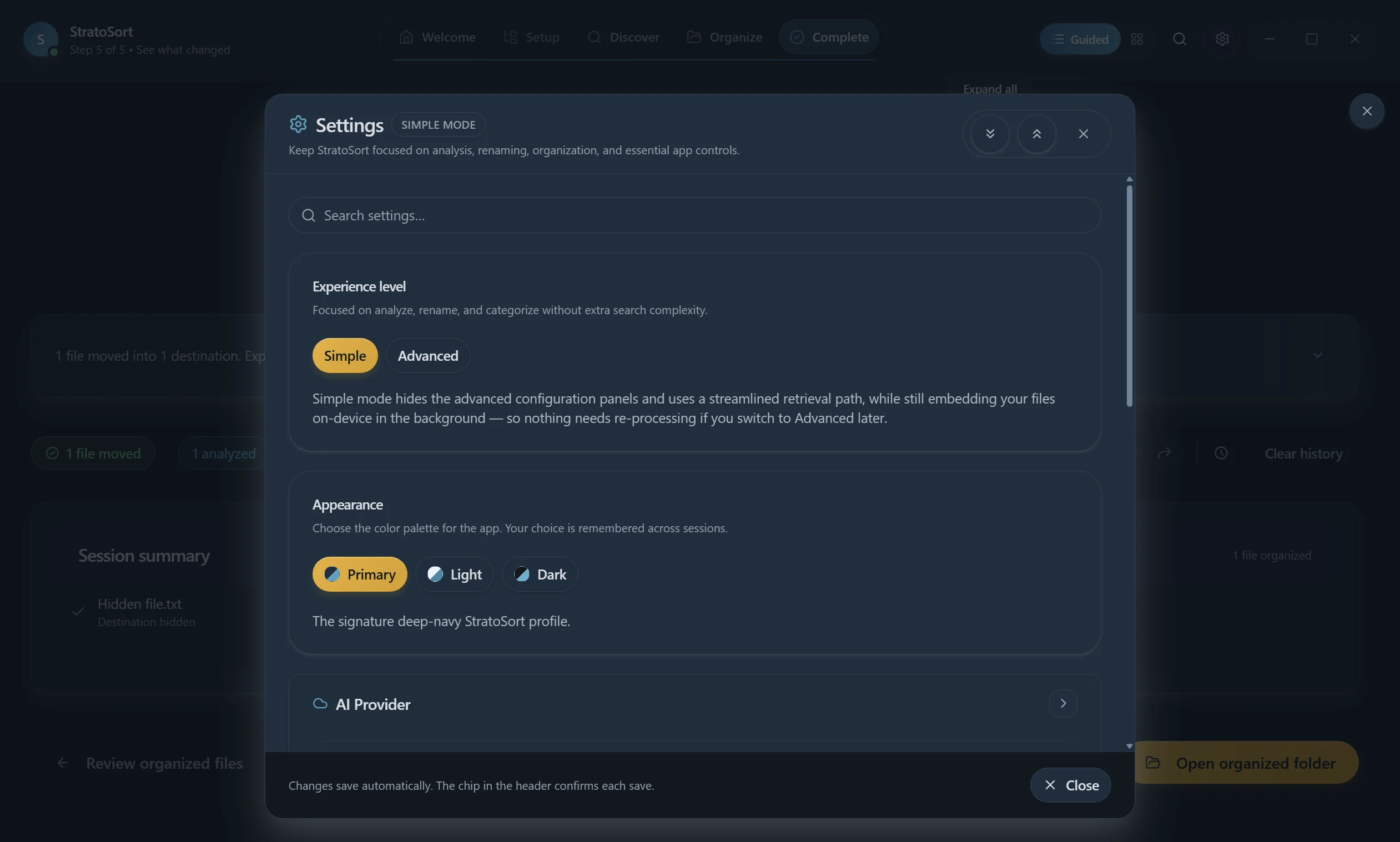
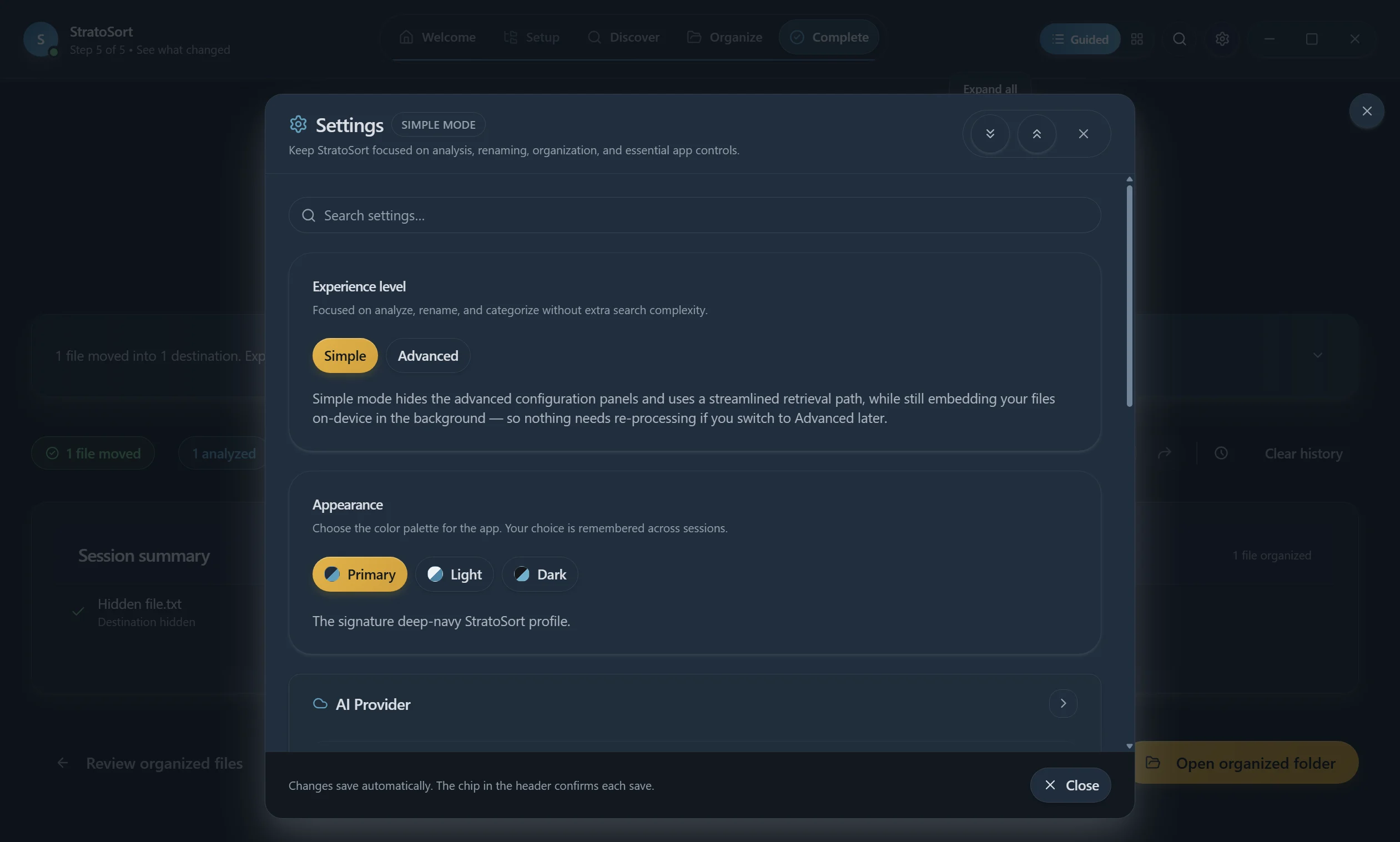
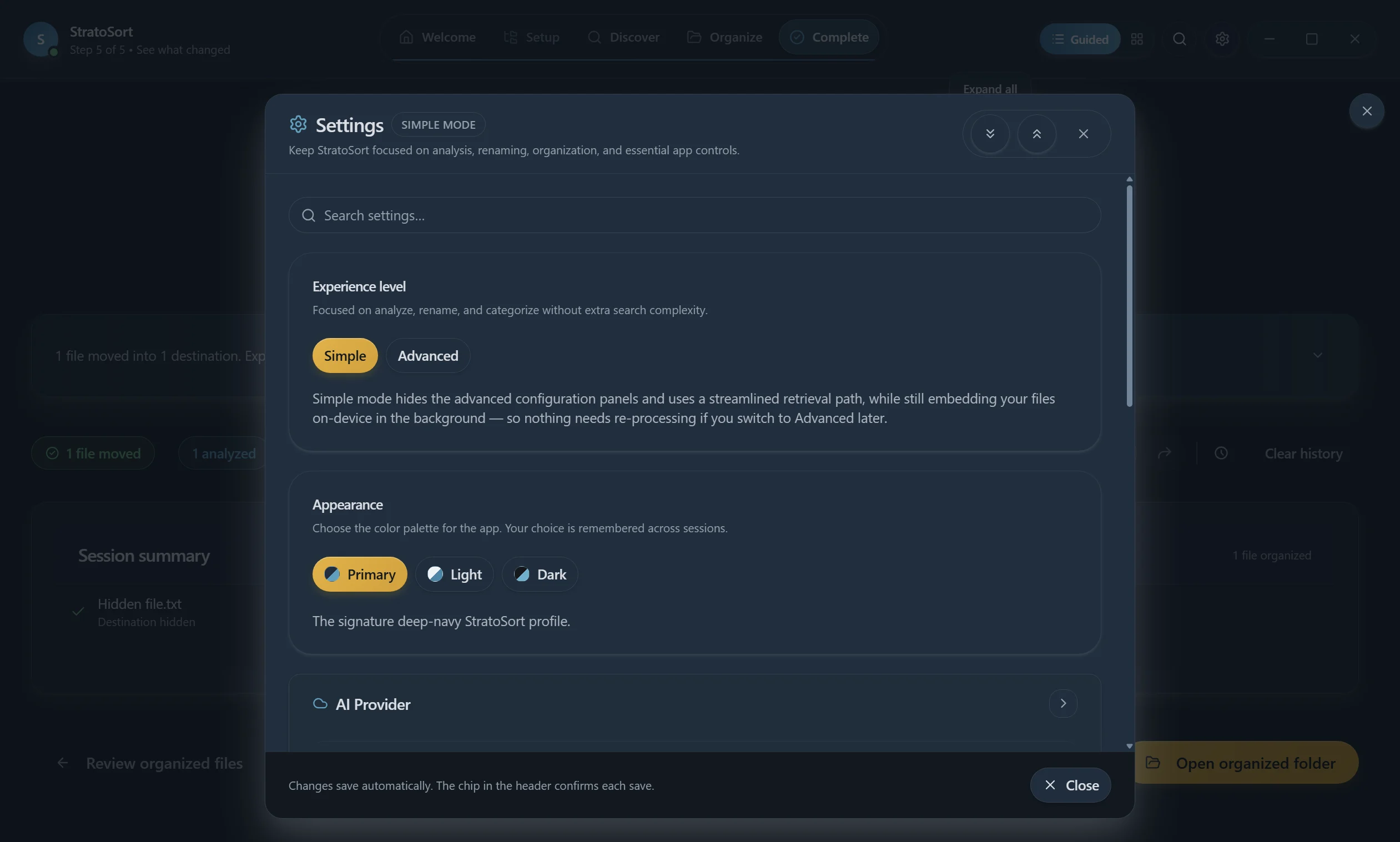
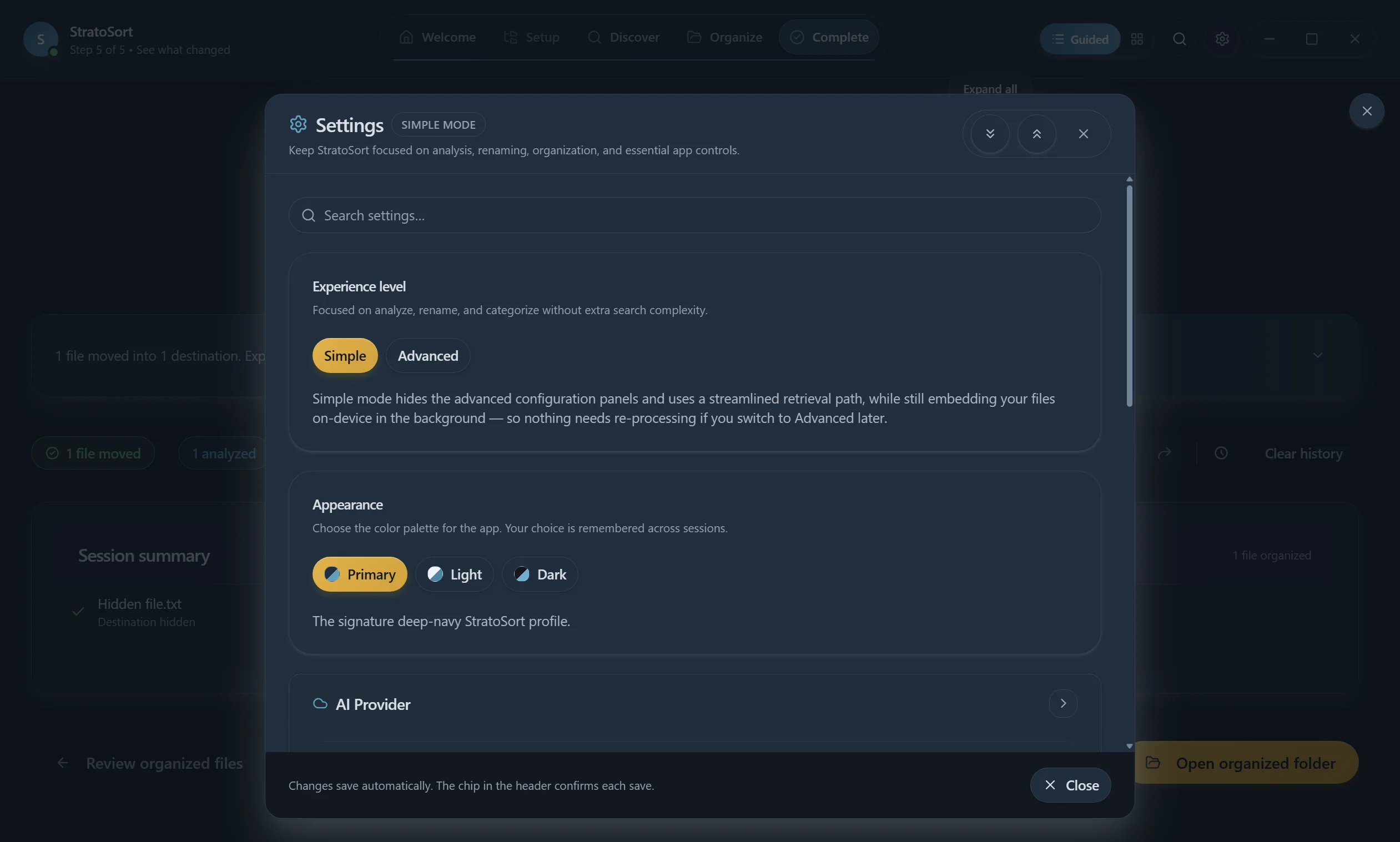
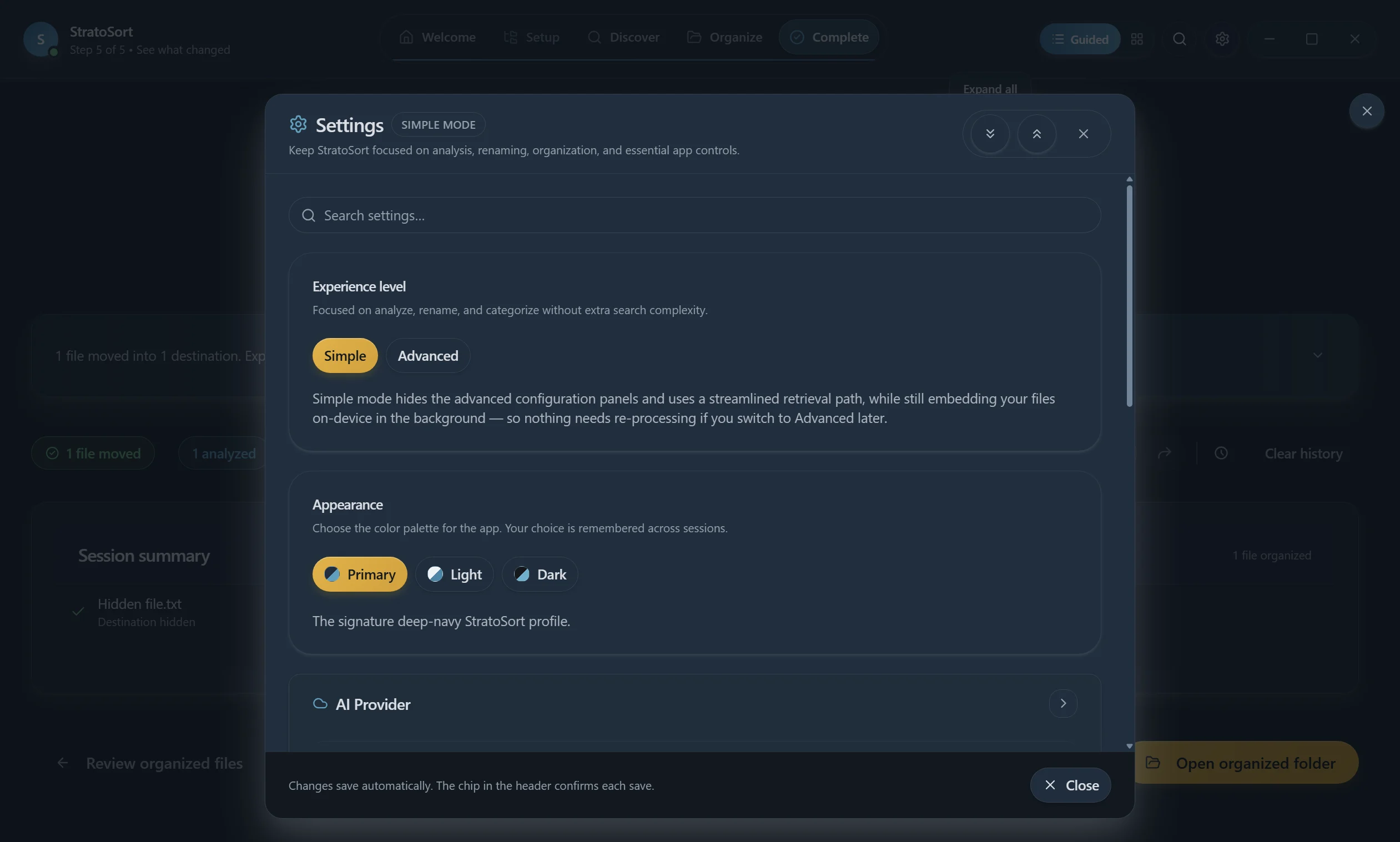
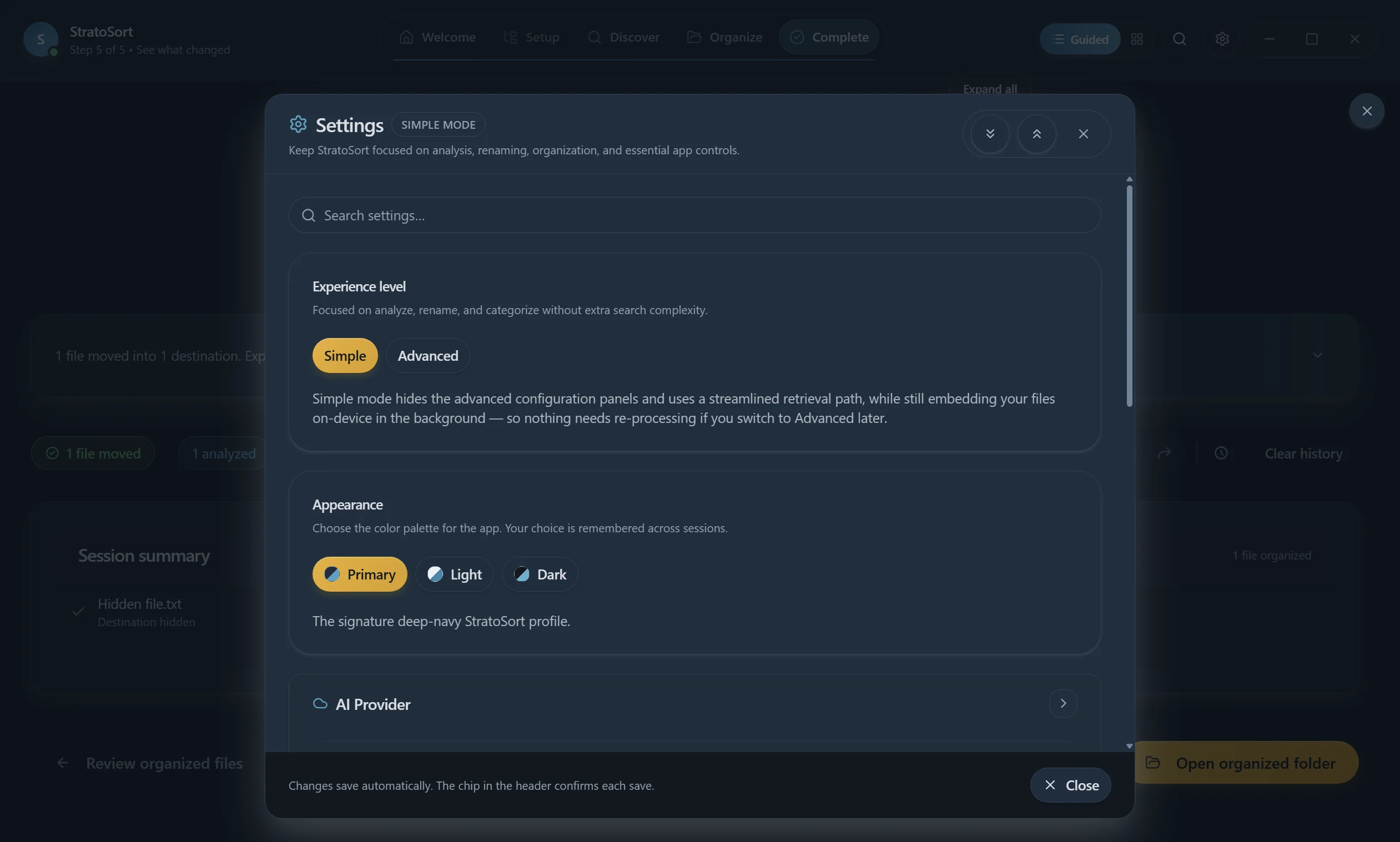
npm run tour:record(Windows, dark theme). Knowledge OS tabs are Search, Chat, Timeline, Relate, and Atlas. Settings includes Experience, Appearance, AI Provider, MCP Server, License, and Legal notices. Some Settings subsections share the Simple-mode still when a dedicated panel shot is not in the tour set.
A visual guide to every screen and feature in StratoSort Stack. Each section maps to one phase of the app workflow. The full clip is how-to-use.mp4.
Platform shown: Current recorded tour (Windows). Installers also ship for macOS and Linux.
Table of Contents
- First Launch & Model Setup
- Welcome Phase
- Setup Phase — Smart Folders
- Discover Phase — File Analysis
- Organize Phase — Review & Execute
- Complete Phase — Summary
- Search & Knowledge Graph
- Settings — Full Reference
- Videos
1. First Launch & Model Setup
On first launch, StratoSort checks for AI models in the models/ folder under its app data
directory (%APPDATA%\StratoSort Stack on Windows, ~/Library/Application Support/StratoSort Stack
on macOS, ~/.config/StratoSort Stack on Linux). If required models are missing, a setup wizard
guides you through downloading them.
Model Selection
On first launch a setup wizard can download models. The recorded tour stills start after that wizard (models already present). The running app still shows:
The wizard presents installation profiles and lets you choose which models to install:
| Model Type | Purpose | Required? |
|---|---|---|
| Embedding Model (all-MiniLM-L6-v2 / Nomic Embed Text v1.5) | Converts text to vectors for semantic search | Yes |
| Text Analysis Model (Llama 3.2 3B / Qwen2.5 7B) | Analyzes documents and generates descriptions | Yes |
| Vision Model (LLaVA v1.6 Mistral 7B) | Analyzes images and screenshots | Optional |
The Base (Small & Fast) profile (about 7 GB) uses the first model in each pair; Better Quality (Larger) (about 10 GB) uses the second.
The wizard shows installation status for each model (Installed / Not installed) with download size estimates, plus a Start in Advanced mode checkbox (leave it off to start in Simple mode). Three action buttons are available:
- Download models — begins downloading selected models
- Refresh — re-checks local model availability
- Continue with limited AI — skips setup and enters the app immediately
Download Progress
During download, you see per-model progress bars with download speed and completion percentage. You can continue using the app while models download in the background.
2. Welcome Phase
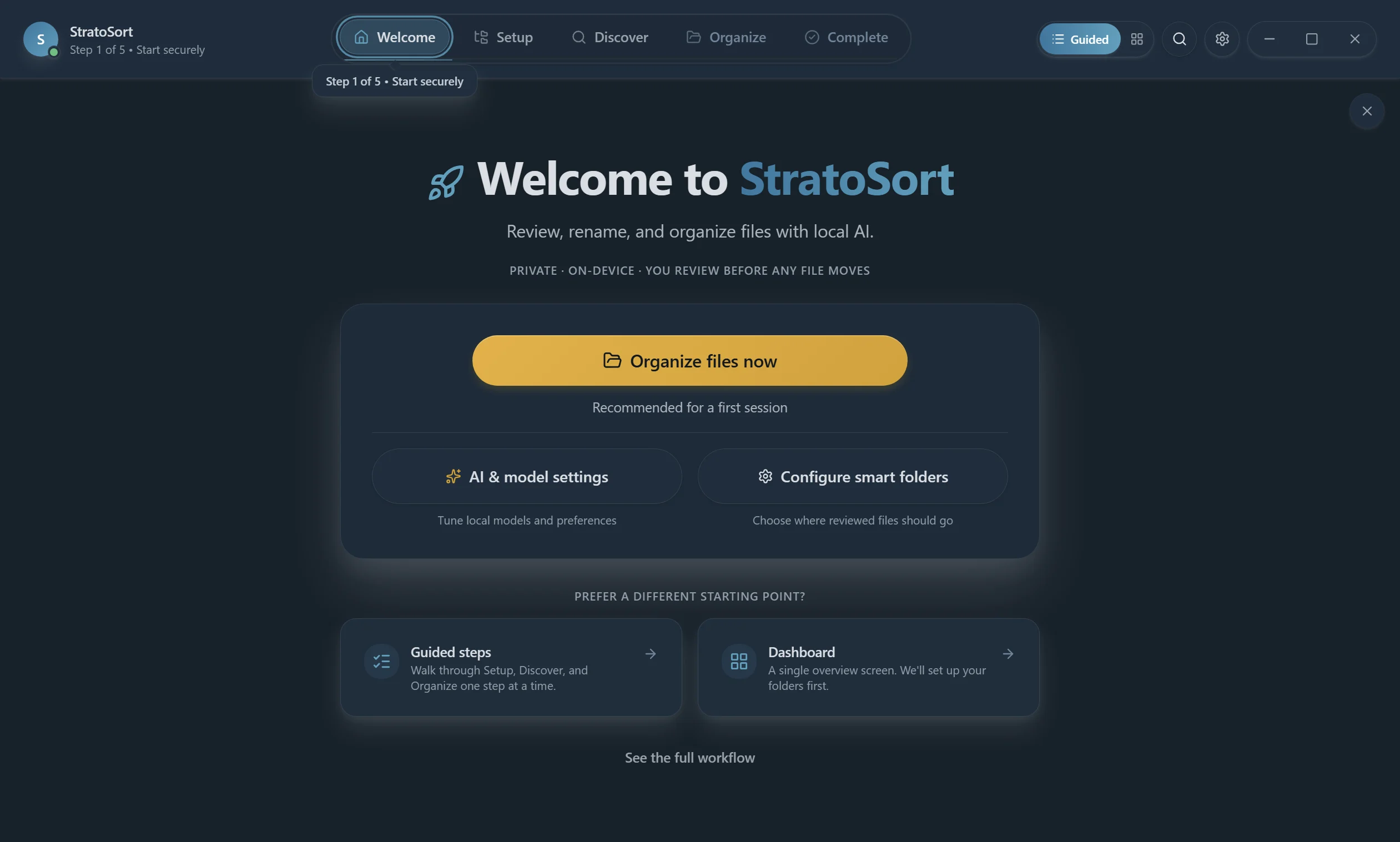
After model setup (or if models are already present), you land on the Welcome screen.
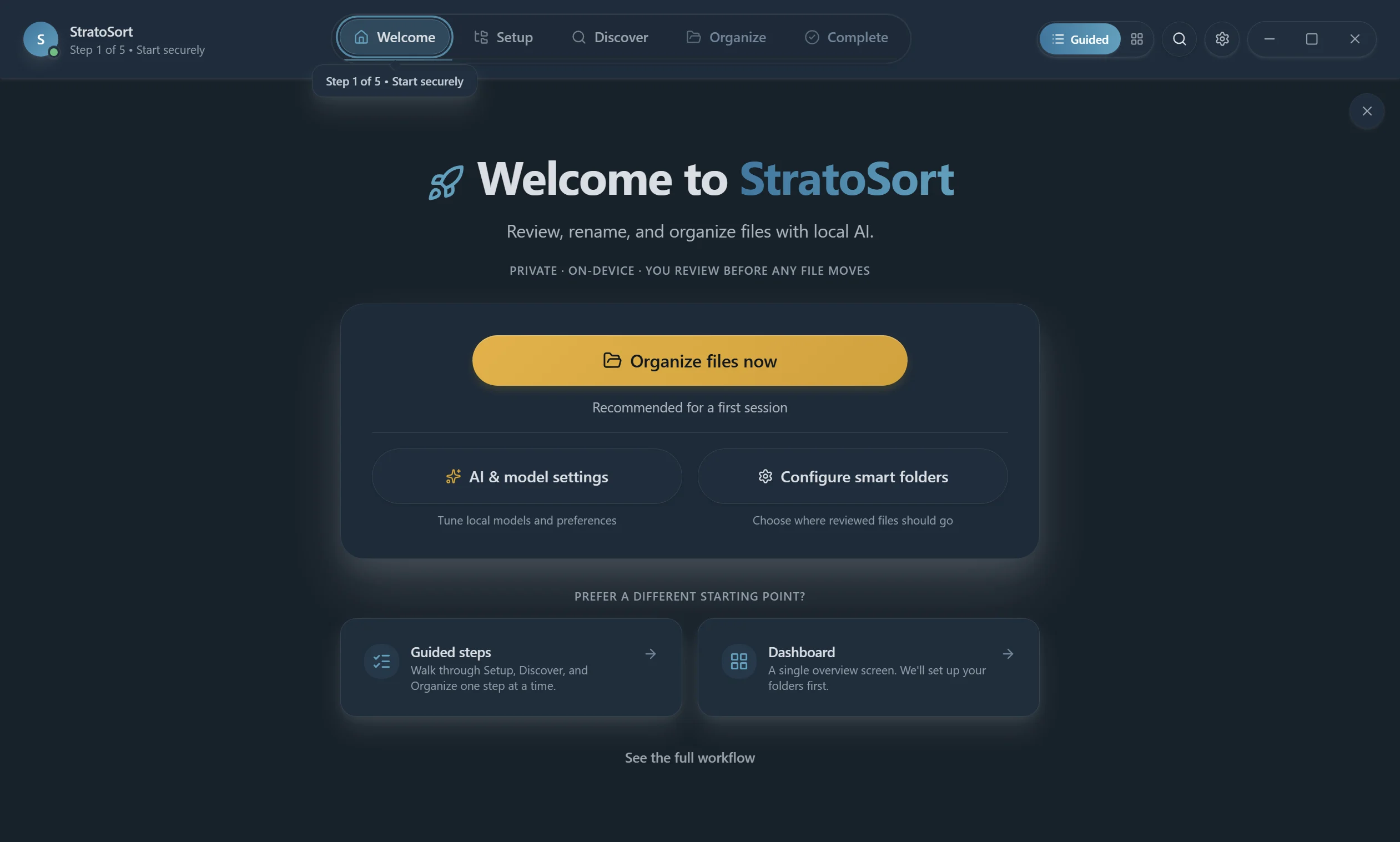
Navigation Bar
The top bar is always visible and contains:
- StratoSort logo with connection status indicator (green = AI engine ready)
- Phase tabs: Welcome → Setup → Discover → Organize → Complete
- Guided / Dashboard toggle — switches between the step-by-step phases and a single overview screen
- Search button — opens Knowledge OS (same as Ctrl+K / Cmd+K)
- Settings gear — opens the configuration panel
- Window controls — minimize, maximize, close
Welcome Actions
| Action | What It Does |
|---|---|
| Organize files now | Goes to Discover; if you have no Smart Folders yet (besides Uncategorized), goes to Setup |
| AI & model settings | Opens the Settings panel |
| Configure smart folders | Goes to the Setup phase |
| Guided steps | Walk through Setup, Discover, and Organize one step at a time (default) |
| Dashboard | A single overview screen (sets up your folders first) |
| See the full workflow | Opens the "How StratoSort works" modal |
How StratoSort Works Modal
Clicking See the full workflow shows the four steps:
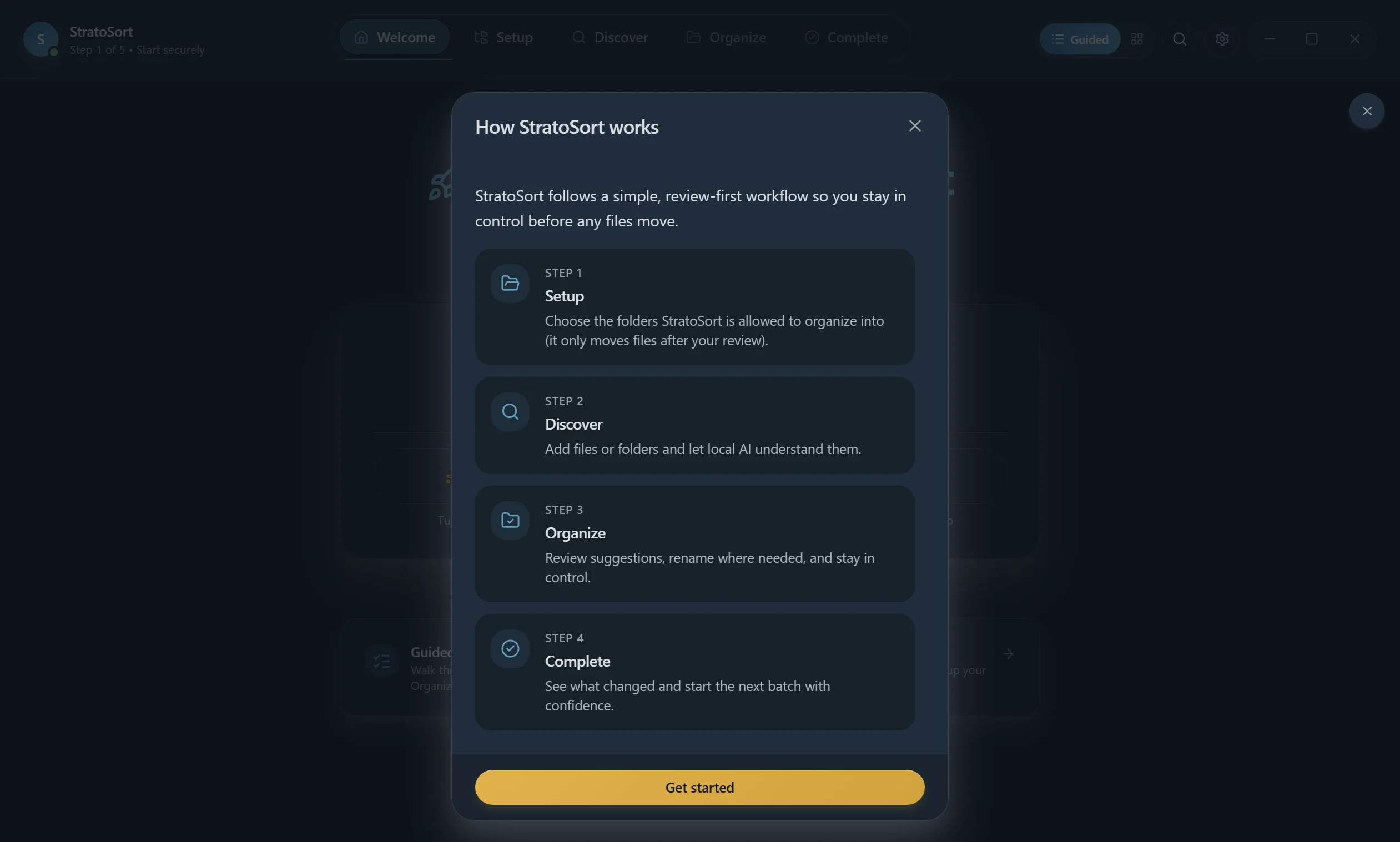
- Setup — Choose the folders StratoSort is allowed to organize into
- Discover — Add files or folders and let local AI understand them
- Organize — Review suggestions, rename where needed, and stay in control
- Complete — See what changed and start the next batch
3. Setup Phase — Smart Folders
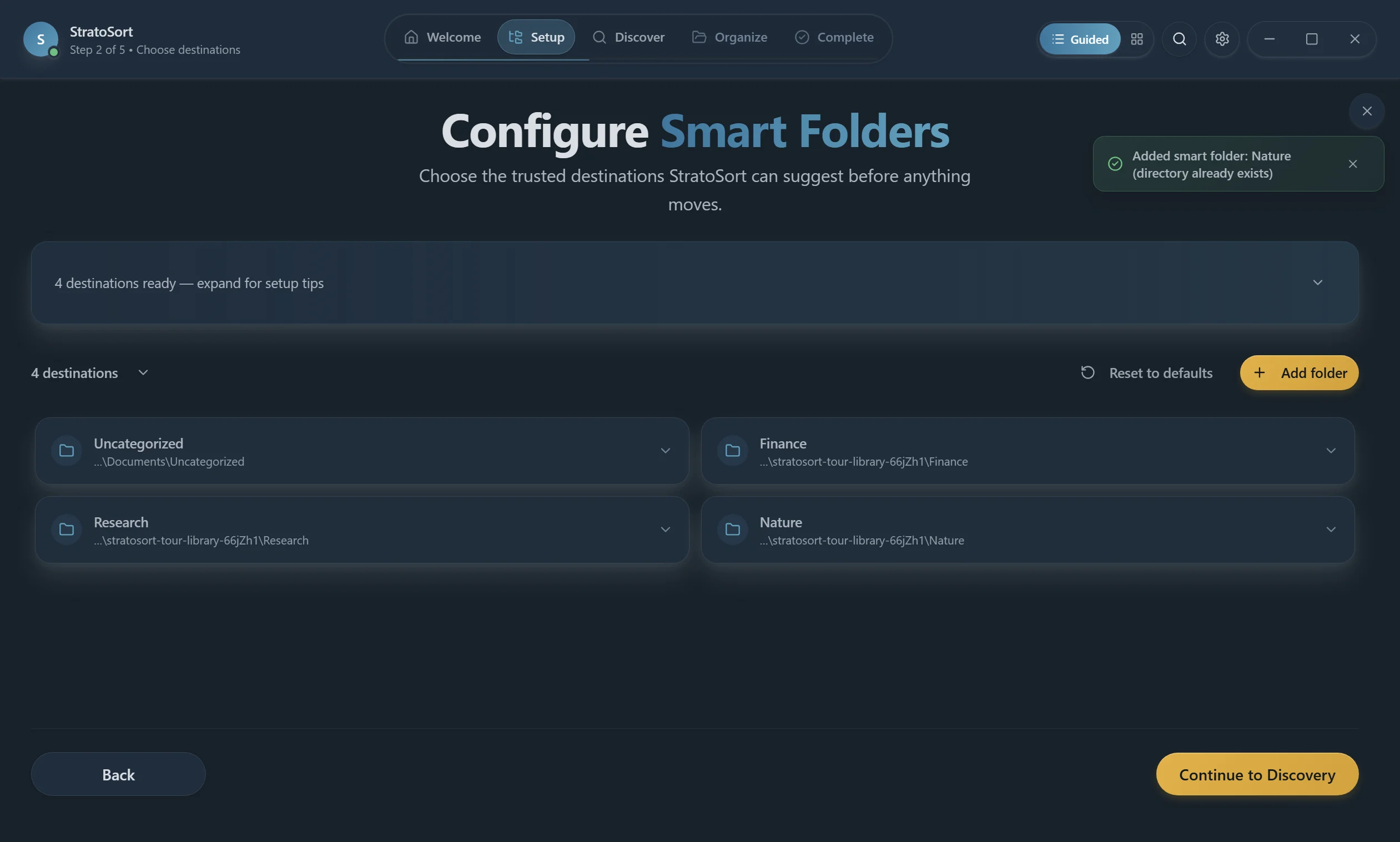
Smart Folders are the destinations the AI uses to organize your files. Each folder has a name, path, and description that the AI reads to decide where files belong.
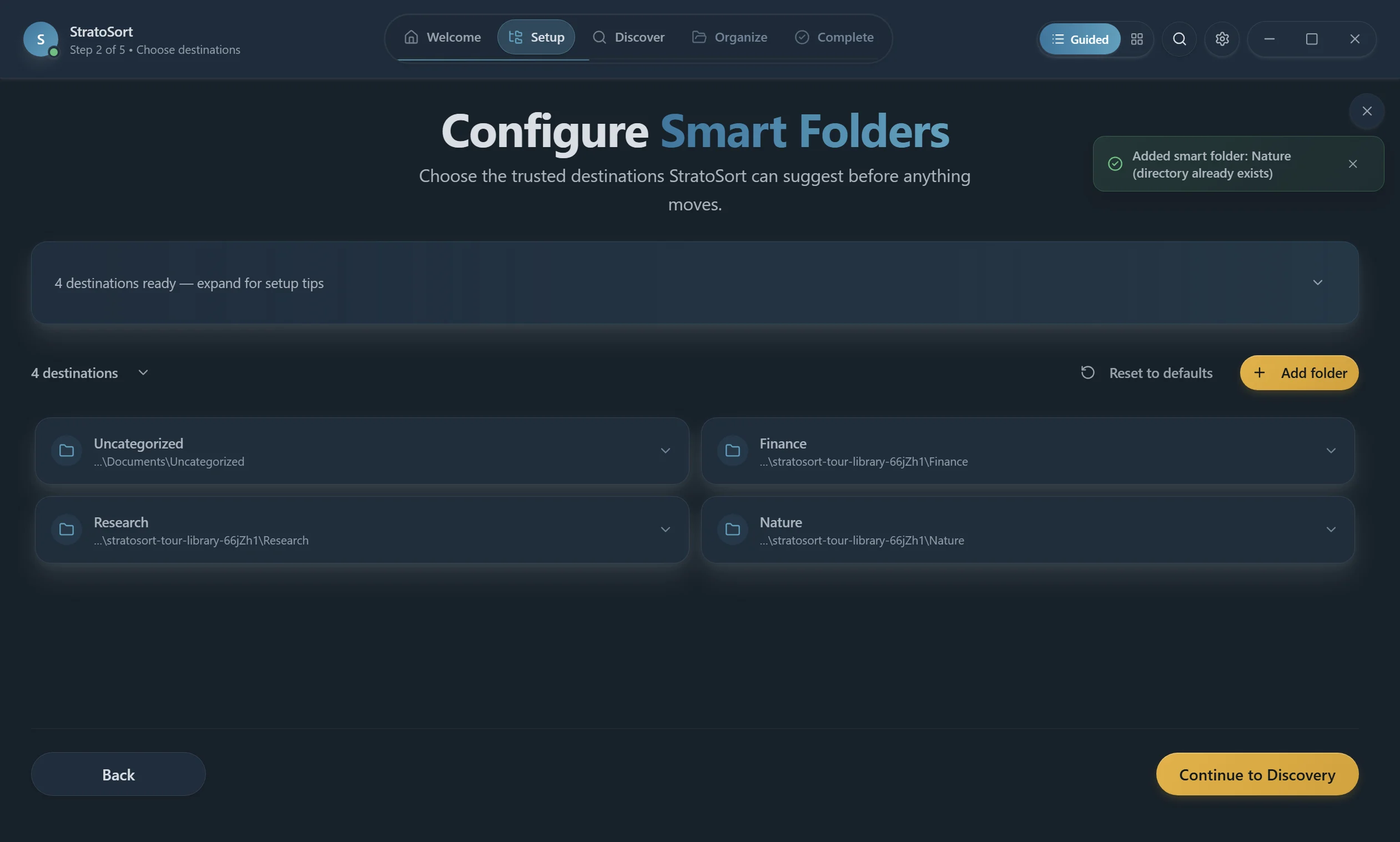
Default Folder
A default "Uncategorized" folder is created at Documents/Uncategorized for files that don't match
any other folder.
Adding a Smart Folder
Click + Add Folder to open the Add Smart Folder dialog:
| Field | Description |
|---|---|
| Folder Name (required) | Display name — e.g., "Invoices", "Photos", "Projects" |
| Target Path (optional) | Filesystem path. Auto-fills based on name and default location |
| Description | Plain-language description of what files belong here. The AI uses this to match files. |
The Generate with AI button can auto-create a description based on the folder name.
Tips
- Create folders around real outcomes:
Invoices,Receipts,Screenshots,Contracts - Write descriptions as if telling a coworker what goes in each folder
- You can edit or delete folders anytime
- Reset to Defaults restores the default folder set
- At least one folder is required before continuing
Click Continue to Discovery when finished.
4. Discover Phase — File Analysis
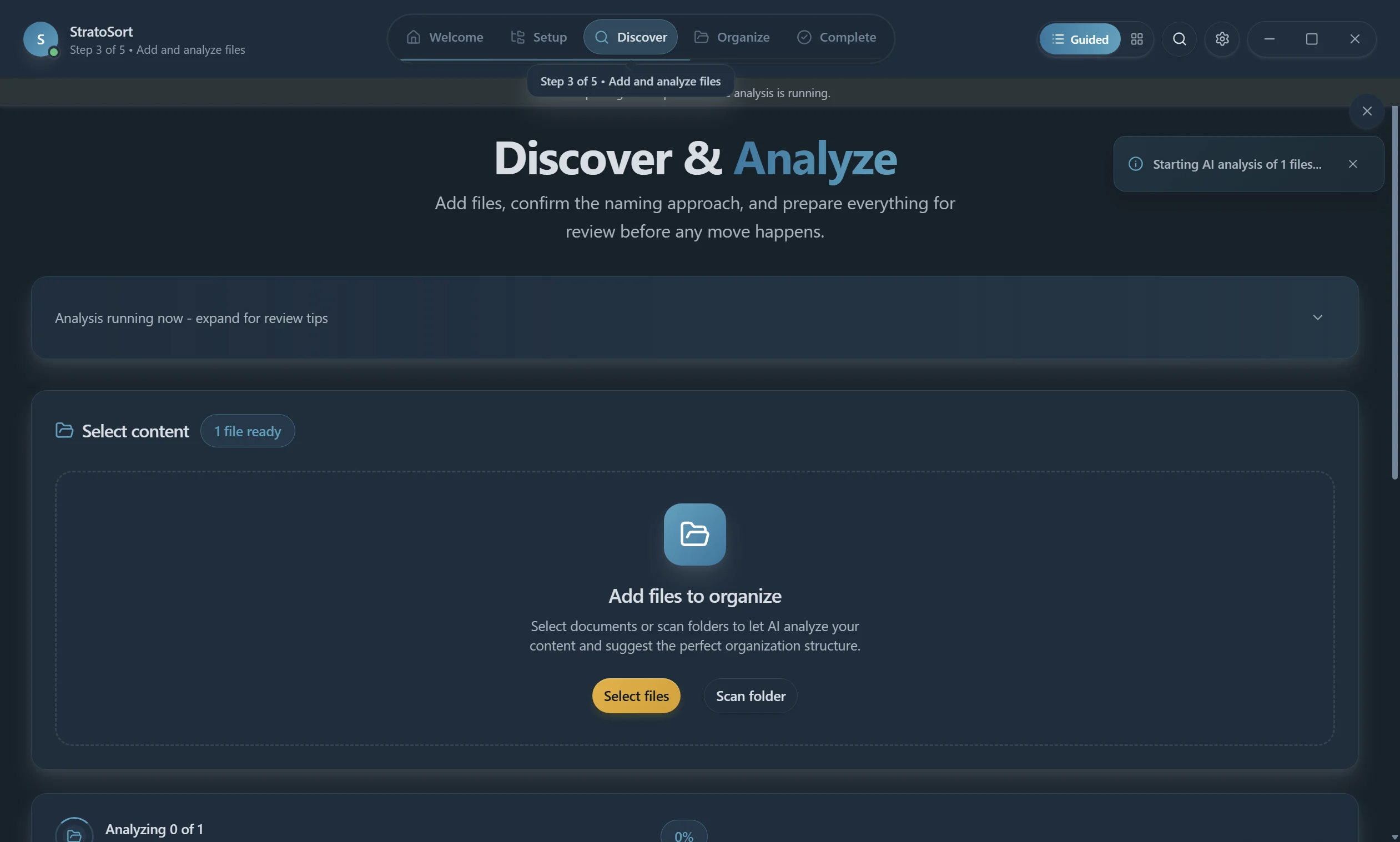
This phase is where you add files for AI analysis. StratoSort reads file contents, extracts meaning, and generates organization suggestions.
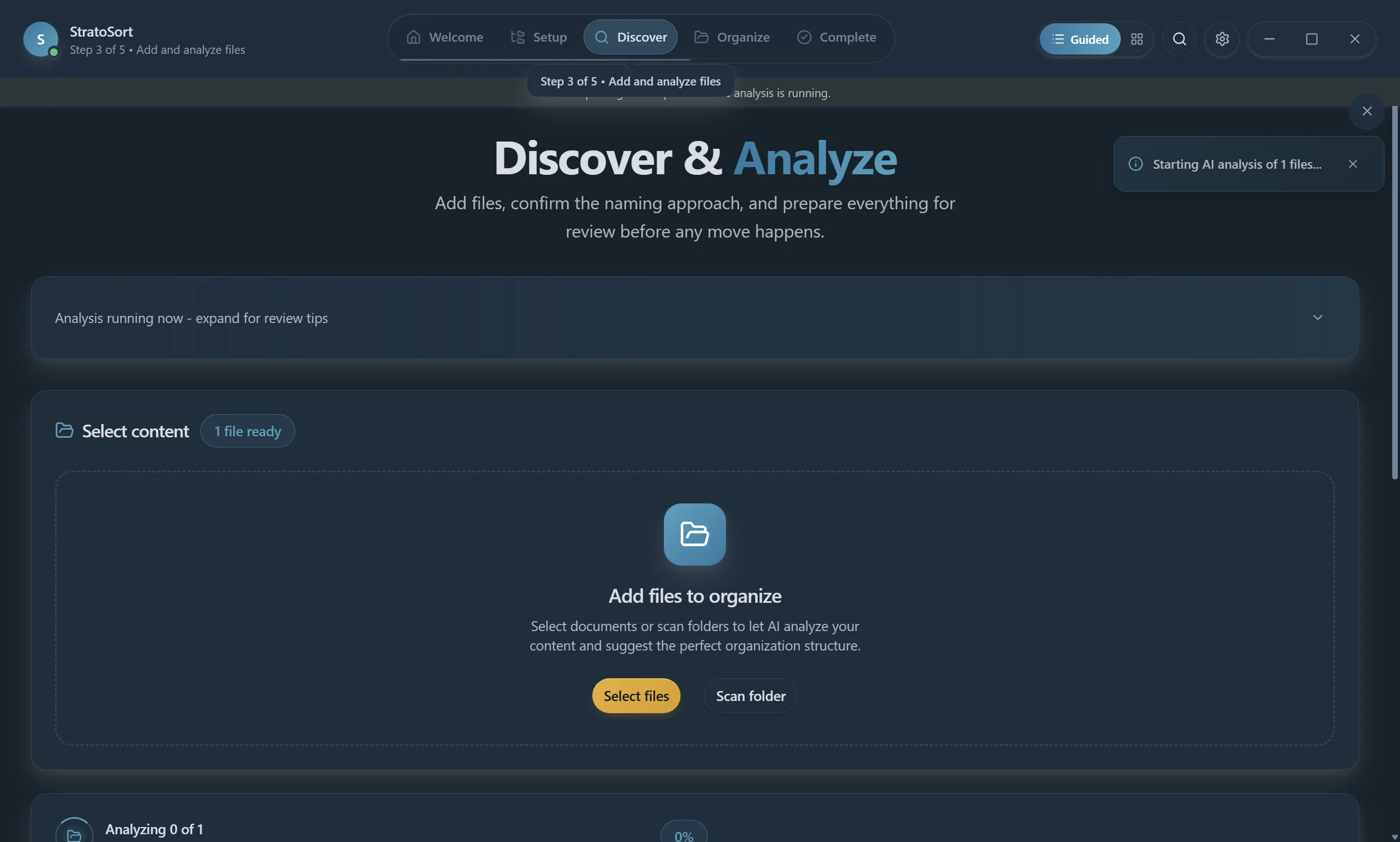
Adding Files
Two methods to add files:
Select Files
Opens a file picker. Navigate to any directory, select individual files or use Ctrl+A to select all, then confirm.
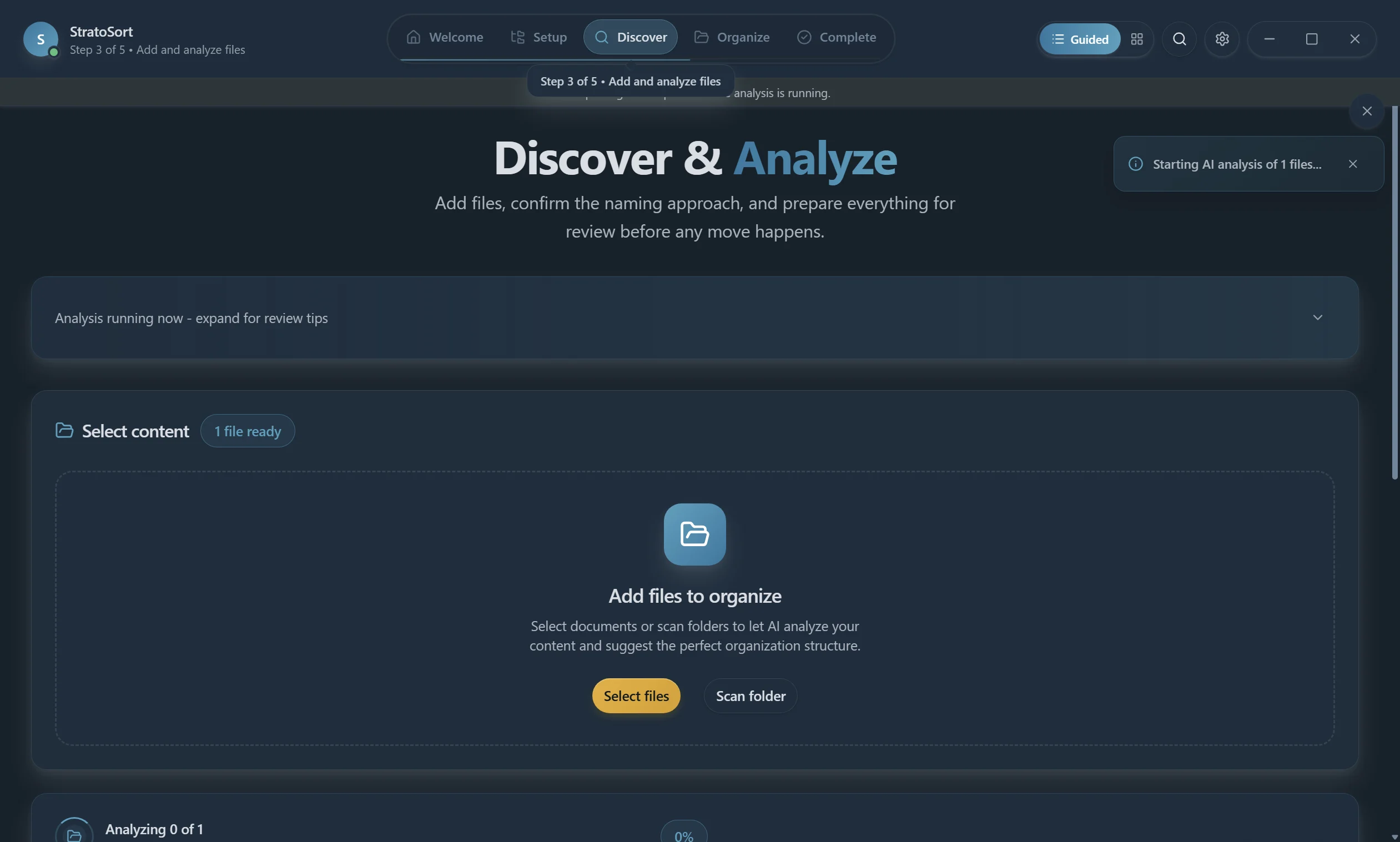
Scan Folder
Opens a folder picker. Select any directory and StratoSort automatically discovers all supported files within it.
Analysis Progress
Once files are added, AI analysis begins automatically:
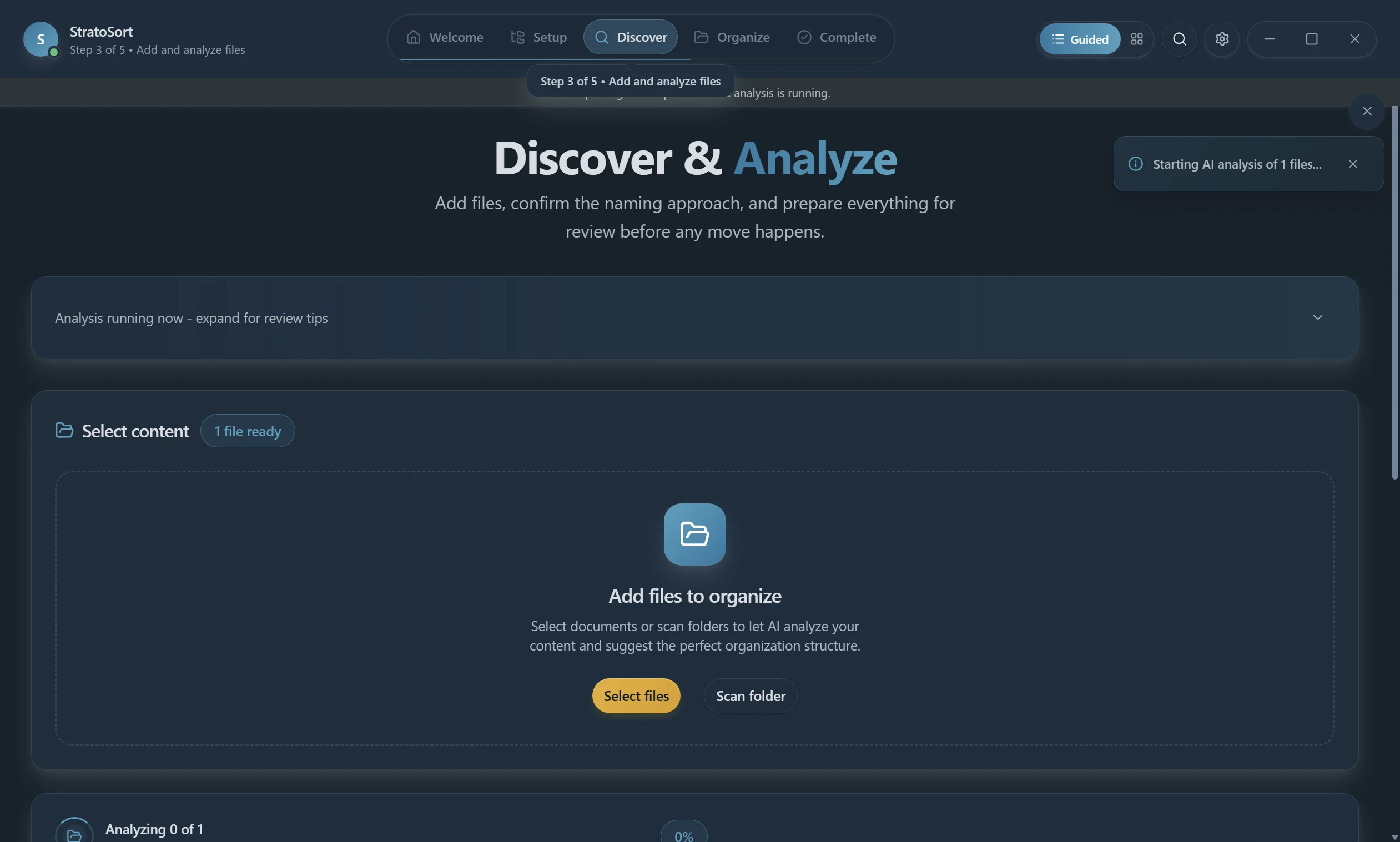
The progress bar shows:
- File counter — "Analyzing X of Y" with percentage
- Current file — which file is being processed
- Stop Analysis button — halt processing at any time
Toast notifications confirm actions:
- "Added N new files for analysis"
- "Starting AI analysis of N files..."
Analysis Complete
When analysis finishes, a completion banner appears with:
- Green status dot with "Analysis complete · 5 ready"
- Toast notification: "Analysis complete! 5 files ready"
- Results summary: "5 successful, 0 failed"
- Clear Queue button to reset
The app automatically advances to the Organize phase once analysis is done.
Naming Strategy
Click Naming strategy in the upper right to configure how files are renamed:
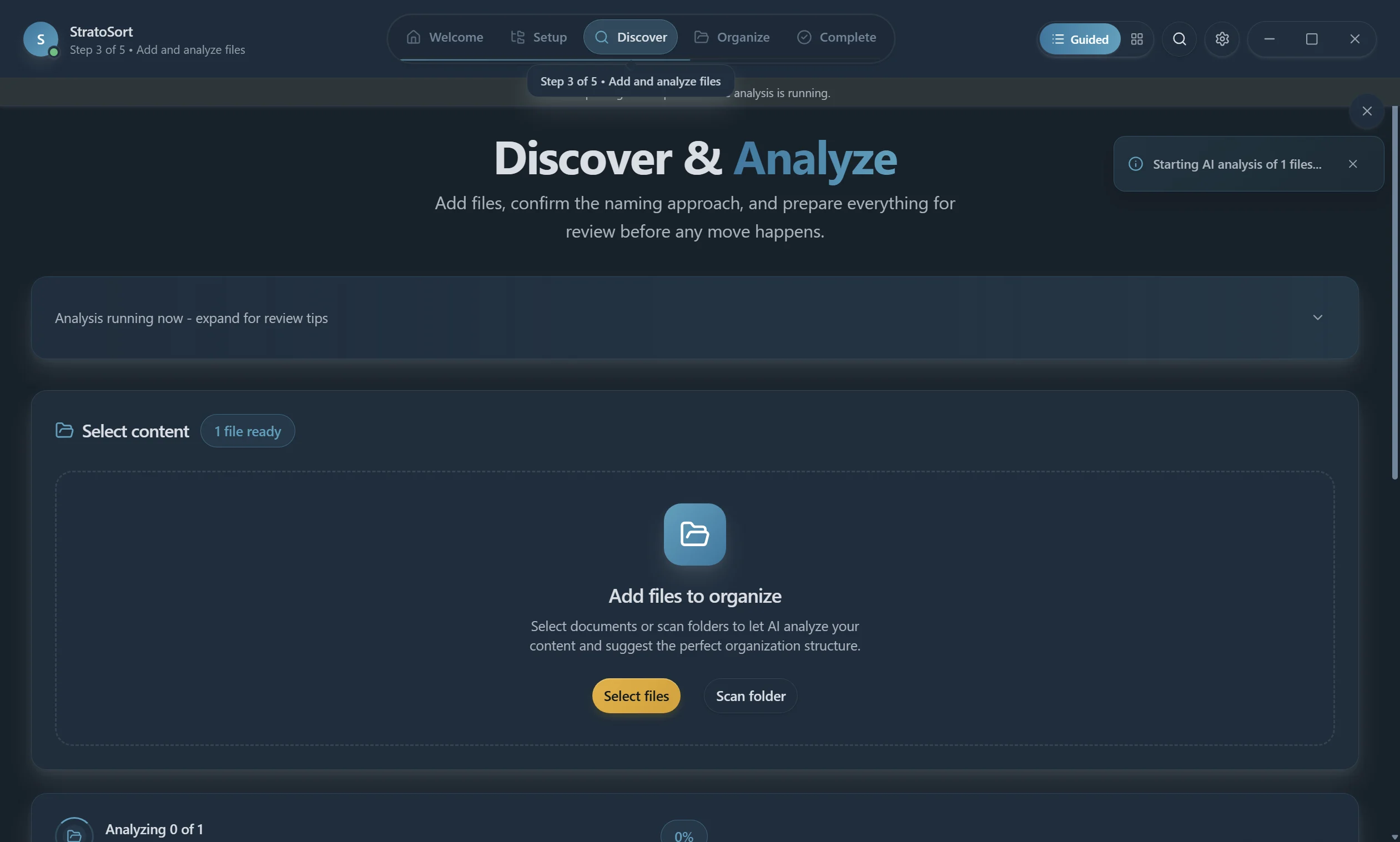
| Setting | Options | Default |
|---|---|---|
| Convention | subject-date, date-subject, project-subject-date, category-subject, keep-original | subject-date |
| Date Format | YYYY-MM-DD, MM-DD-YYYY, DD-MM-YYYY, YYYYMMDD | YYYY-MM-DD |
| Case | kebab-case, snake_case, camelCase, PascalCase, lowercase, UPPERCASE | kebab-case |
| Separator | dash, dot, underscore, none | dash |
A live Preview shows the resulting filename format.
Knowledge OS Panel
Click Knowledge OS to open the semantic search and relationship panel:
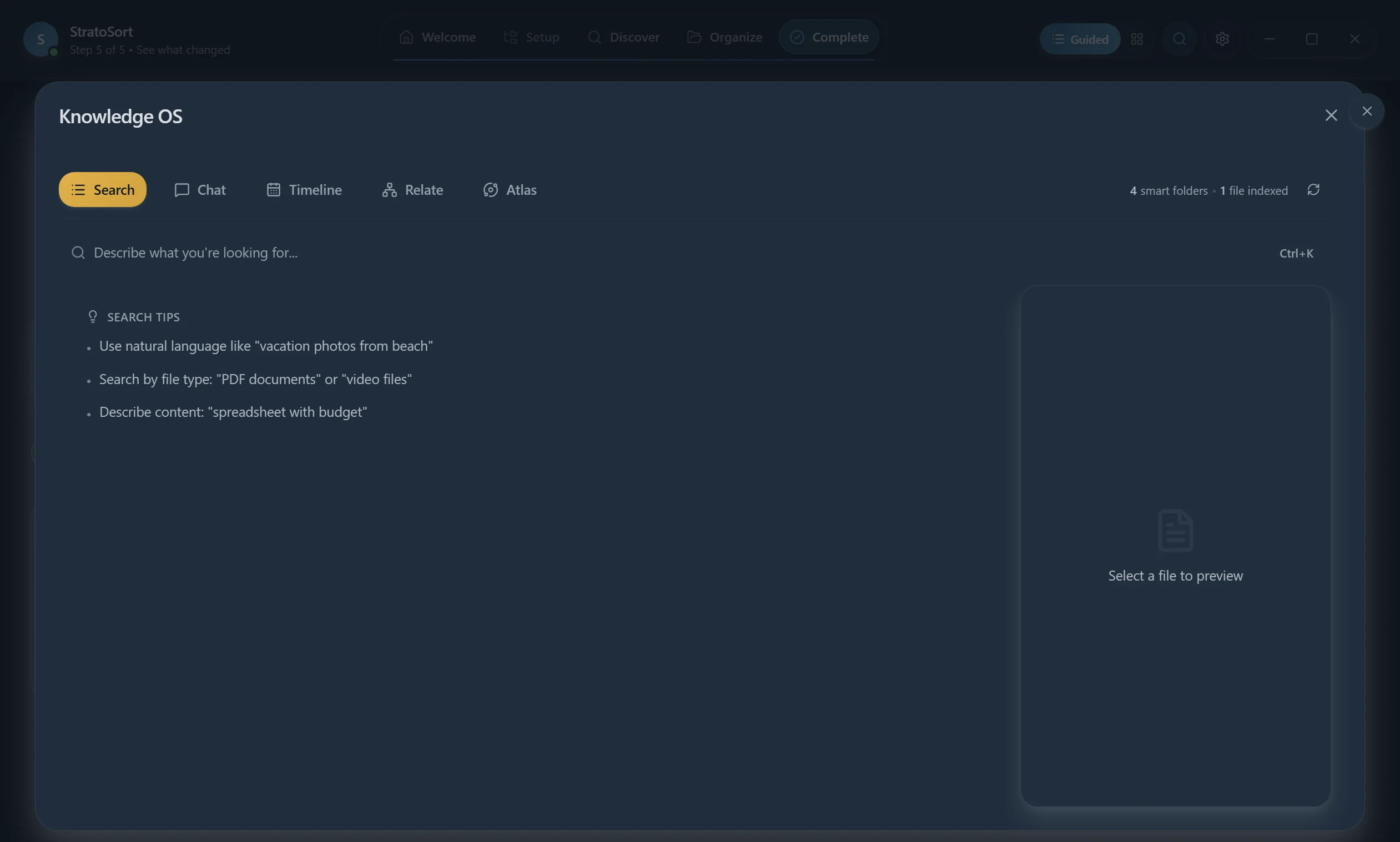
Current tabs:
- Search (was Discover) — Natural language and keyword search
- Chat (was Understand) — Ask questions about your documents
- Timeline — Analyzed files by date
- Relate — Knowledge Graph of clusters and similarity edges
- Atlas — Map of the library (nearby = similar)
The panel needs embeddings. If search is empty, switch Settings to Advanced and use Rebuild all embeddings under AI Configuration → Embeddings maintenance.
5. Organize Phase — Review & Execute
After analysis, the Organize phase shows AI-generated suggestions for each file. You review and approve where each file should be moved and what it should be renamed to.
Note: The Organize tab is only accessible after files have been analyzed in the Discover phase. Navigation is enforced — the tab shows a count badge and a tooltip explaining why it may be disabled.
File Grid with AI Suggestions
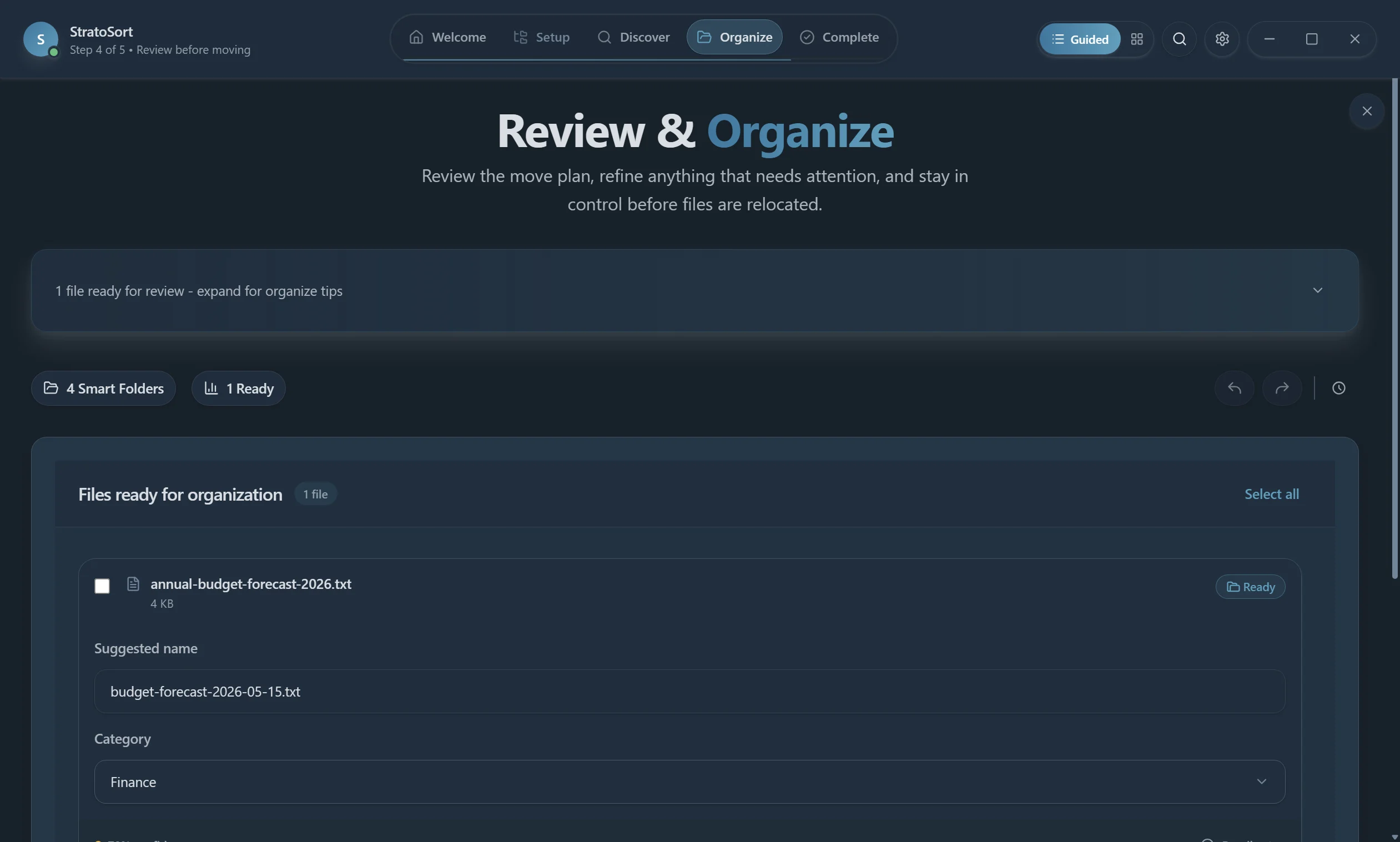
Each file card shows:
- Original filename with "Ready" badge
- Suggested Name — AI-generated filename following your naming convention
- Category dropdown — editable destination folder
- Confidence level — color-coded percentage (green = high)
- Details link — view the full AI analysis
Example AI suggestions from a real analysis:
| Original File | Suggested Name | Confidence |
|---|---|---|
| invoice-2026-0042.txt | consulting-invoice-2026-02-27.txt | 100% |
| meeting-notes.txt | product-plan-session-notes-2026-02-27.txt | 95% |
| onboarding-checklist.txt | onboarding-checklist-2026-02-27.txt | 100% |
Batch Operations
Click Select All to check all files, then use:
- Approve Selected — Accept AI suggestions for all selected files
- Bulk Edit — Change category or name pattern for multiple files at once
- Deselect All — Clear the selection
Additional Features
- Status Overview — Summary modal showing ready/pending/conflict counts
- Conflict Detection — Highlights files with duplicate destination paths
- Execute Organization — Moves and renames files according to approved suggestions
- Undo/Redo — Full undo history for all organization operations
- Processed Files — History of already-organized files
6. Complete Phase — Summary
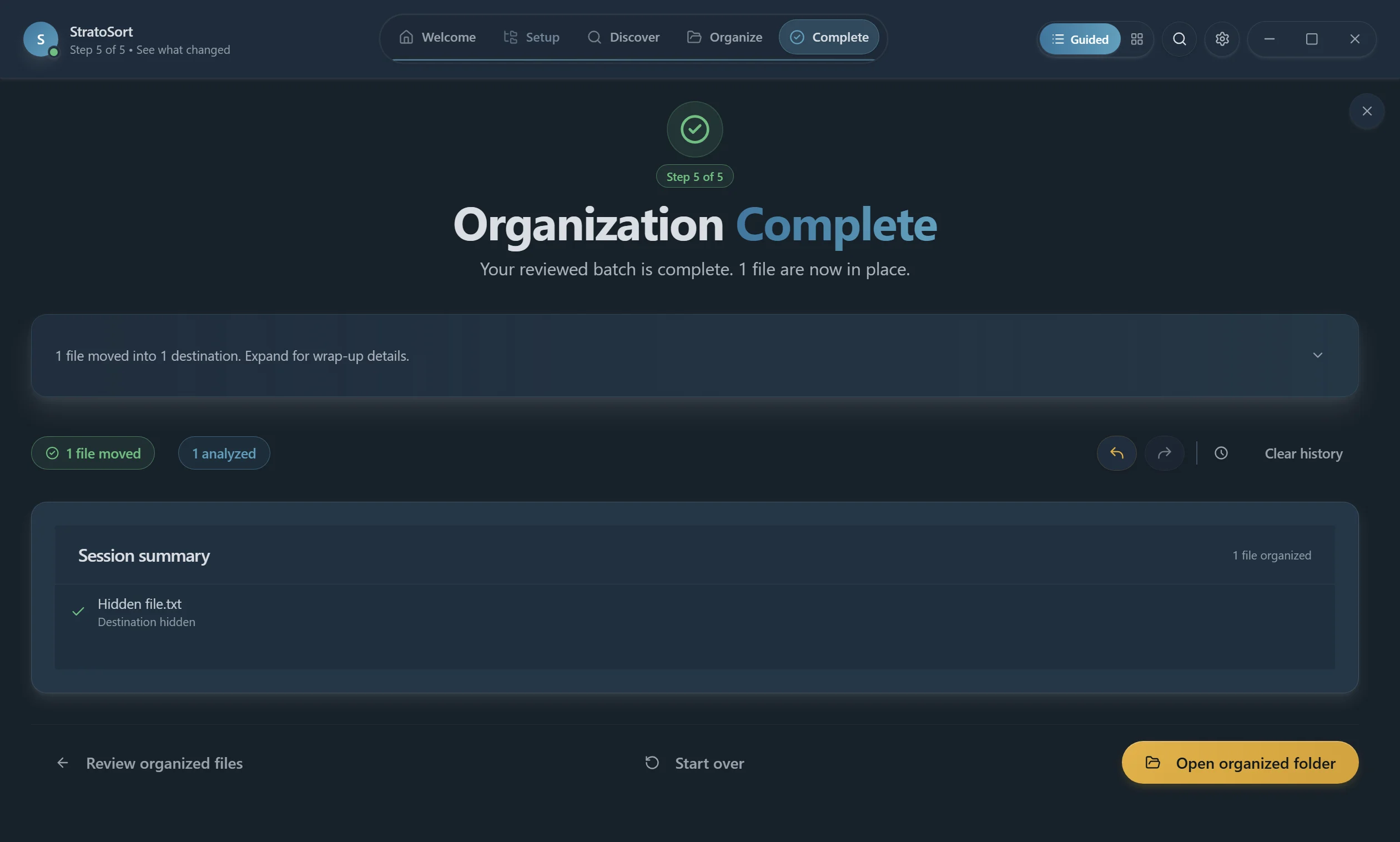
After executing organization, the Complete phase shows a summary of:
- Total files organized
- Destination folders used
- Any errors or conflicts encountered
- Option to start a new session or undo recent changes
7. Search & Knowledge Graph
Opening Knowledge OS
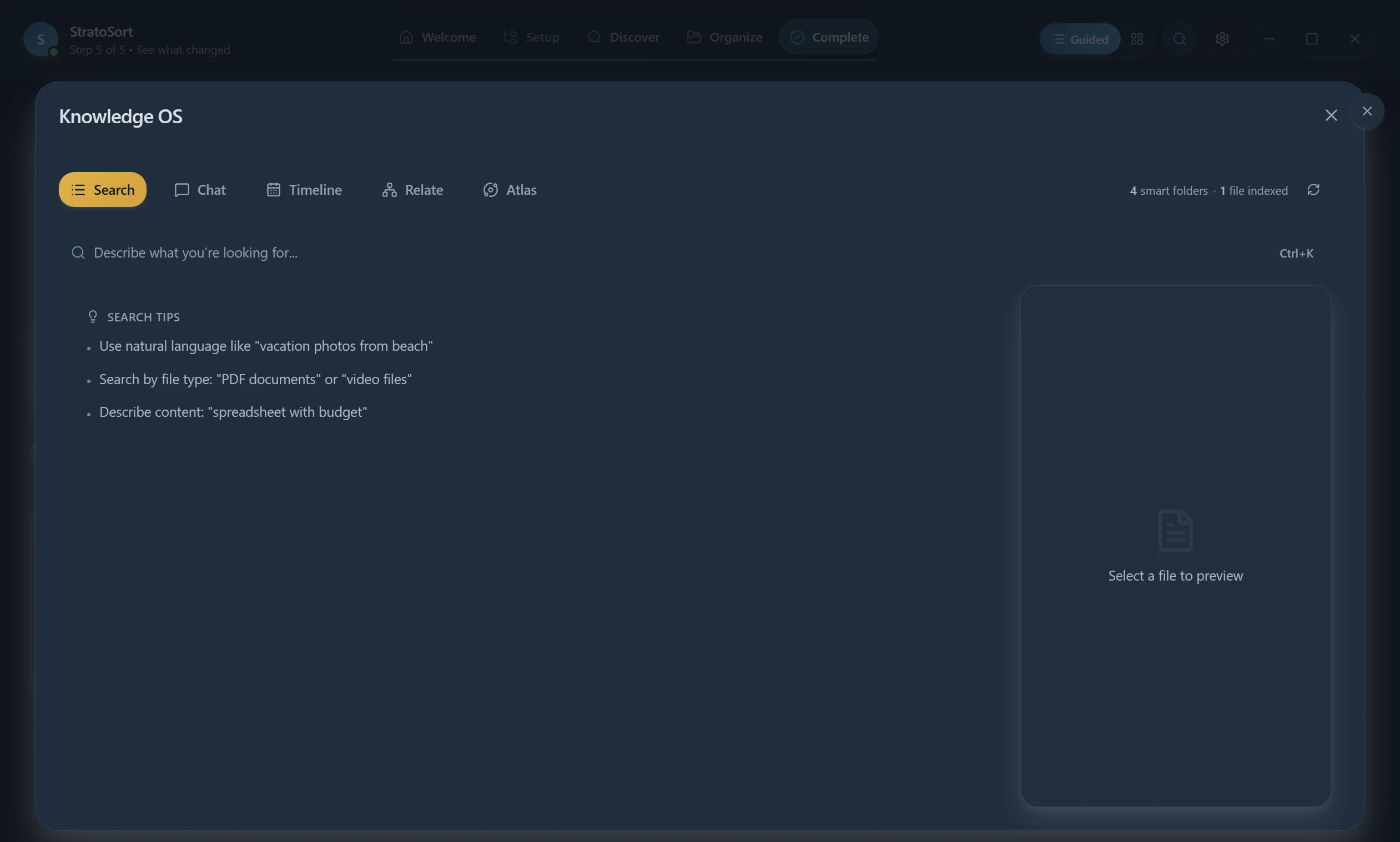
Click the Search button in the navigation bar, or press Ctrl+K (Cmd+K on macOS) from anywhere in the app, to open Knowledge OS directly on the Search tab:
Knowledge Graph Full Interface
After files are analyzed and embedded, Knowledge Graph shows indexed content:
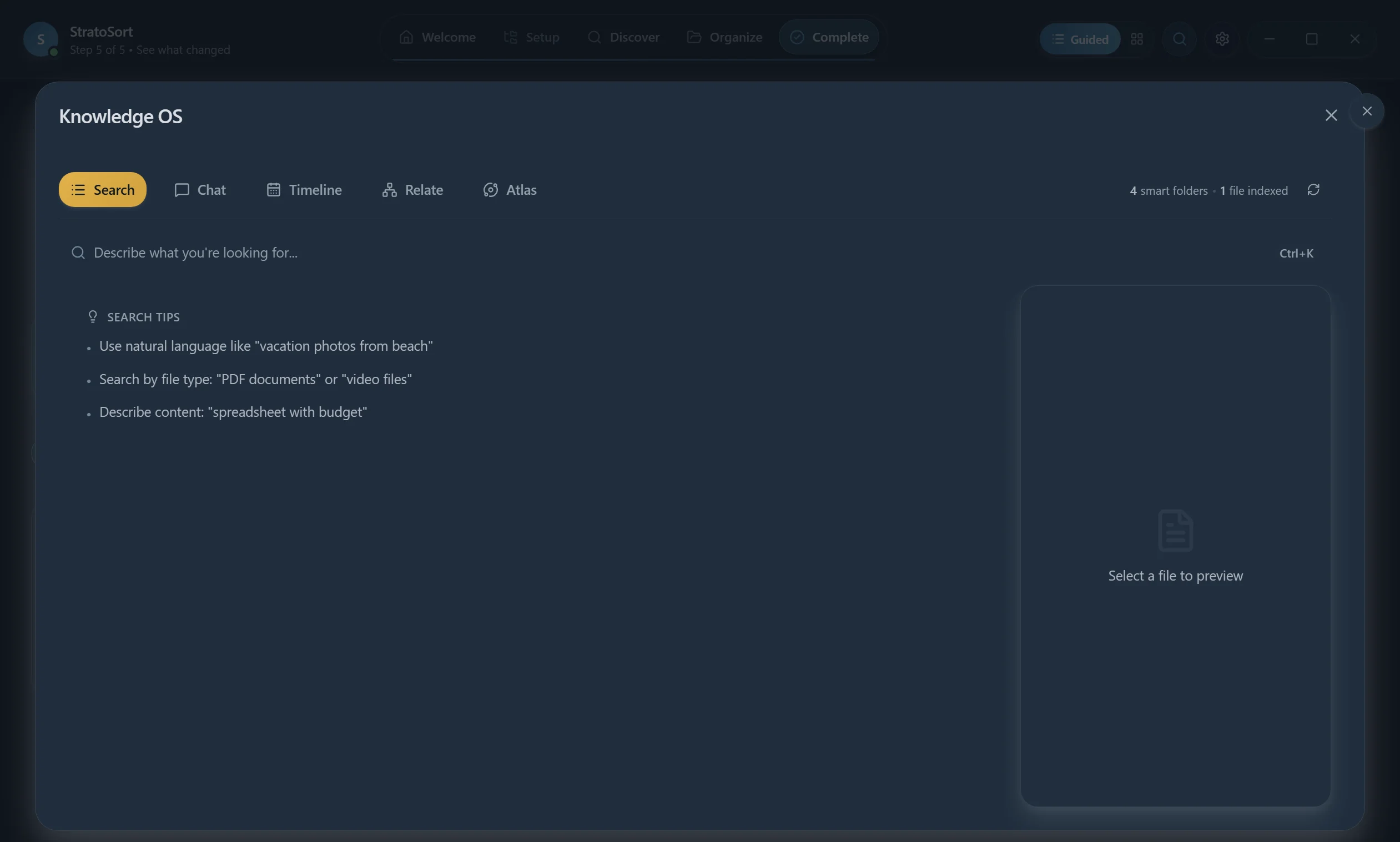
The status bar shows "1 folder · 5 files indexed" confirming embeddings are built. Search tips guide users on natural language queries.
Searching for Files
Type a keyword or natural language description in the search bar:
Type a keyword such as invoice or a natural-language phrase such as
meeting notes about product planning. Results list files with type badges and relevance. Preview,
View in Graph, and Ask AI actions sit on the selected file.
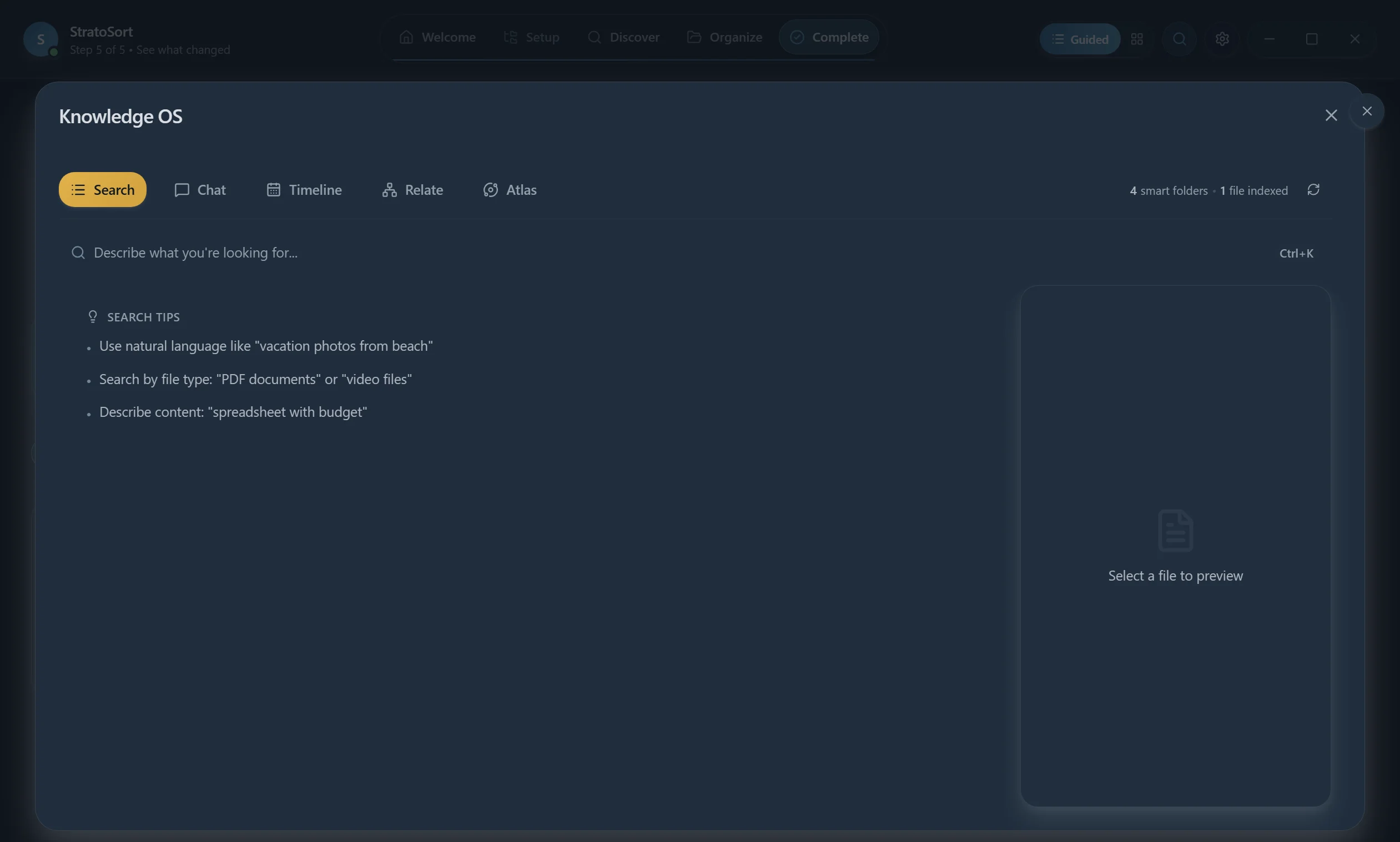
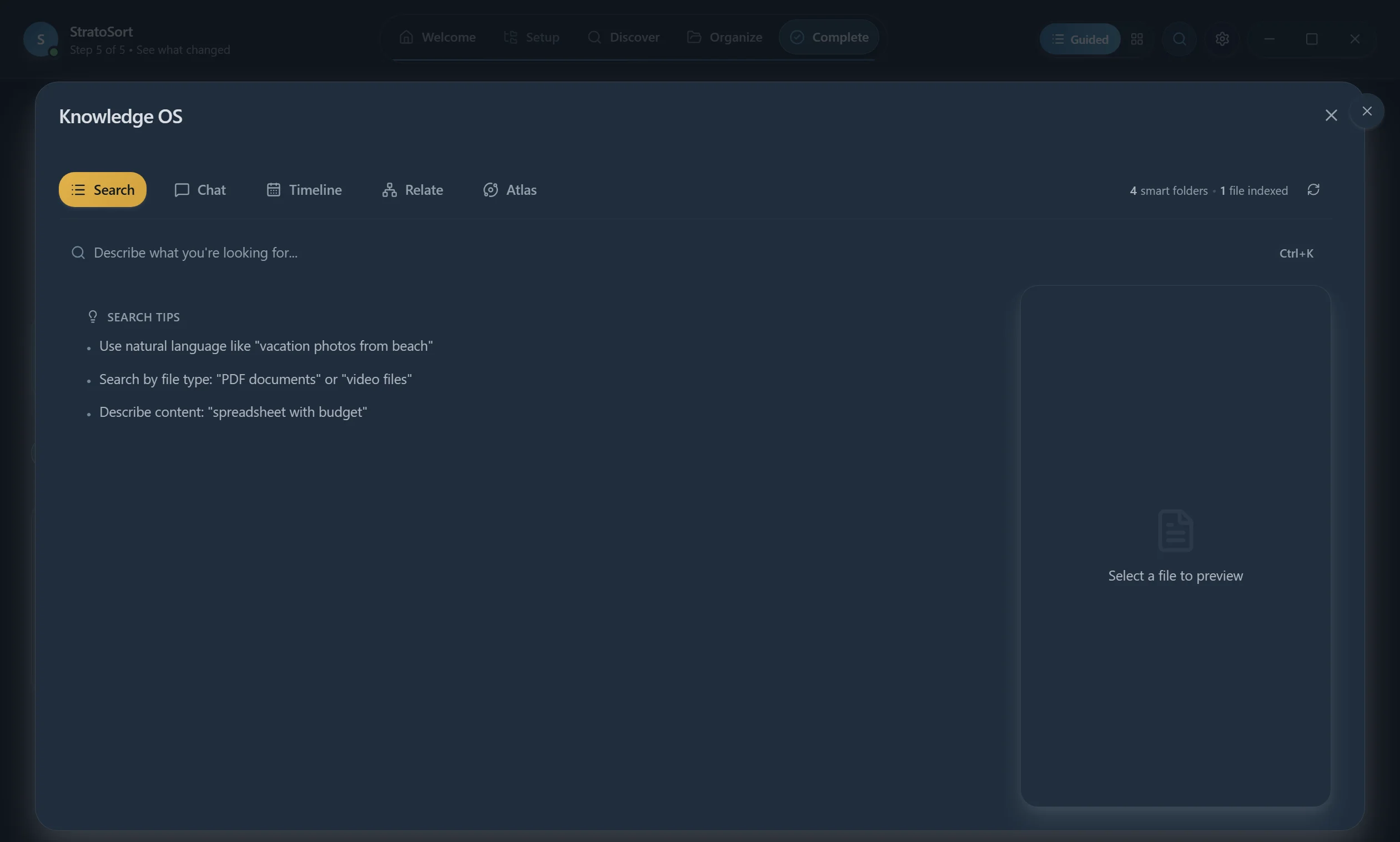
Search Tab (Default)
- Search bar — Describe what you're looking for in natural language
- Results list — Files ranked by semantic relevance with confidence scores
- File preview — Content preview, tags, and actions on the right
- Status indicators — Folder count and indexed file count
- View in Graph — Visualize relationships between search results
Chat Tab — AI conversational chat
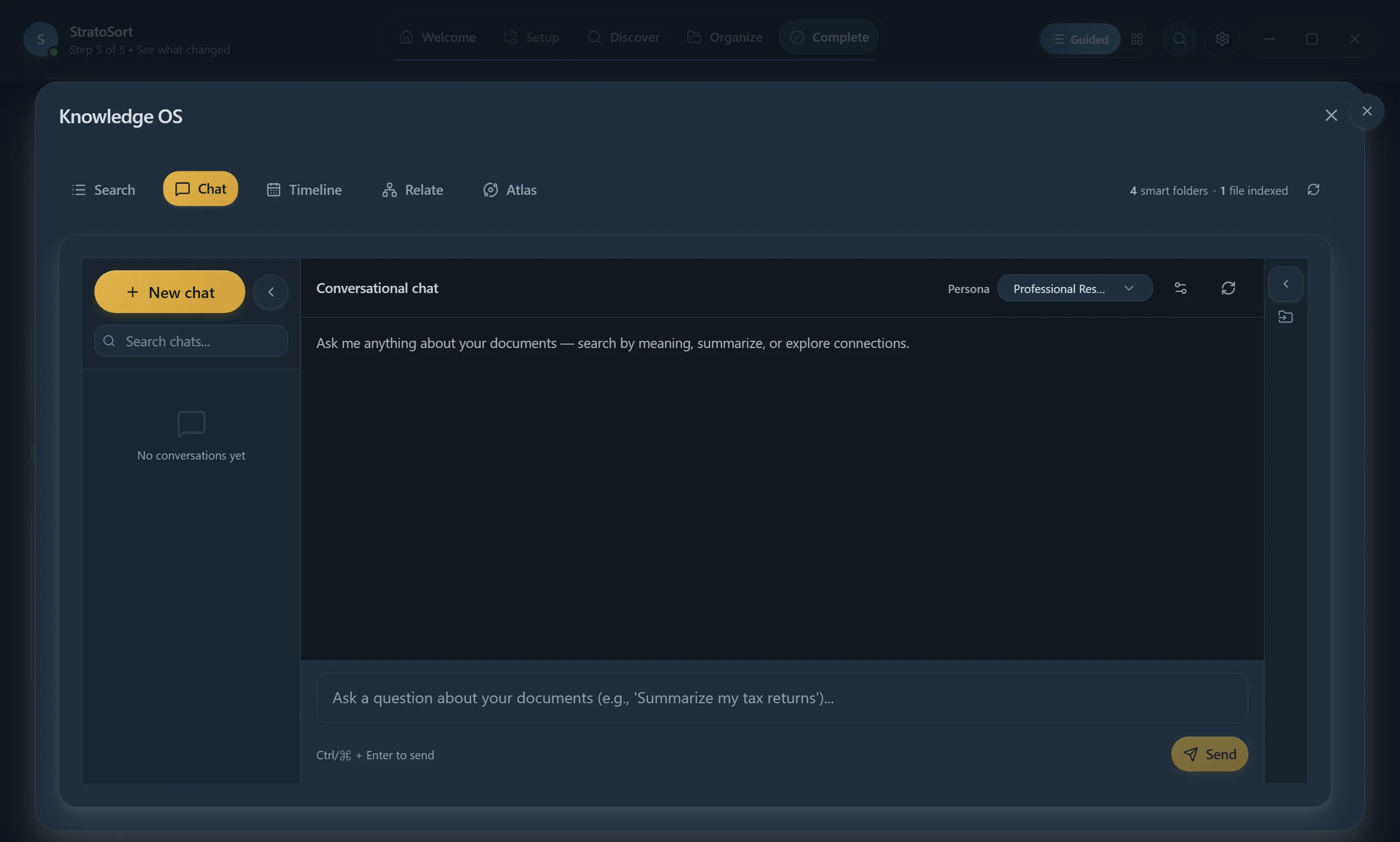
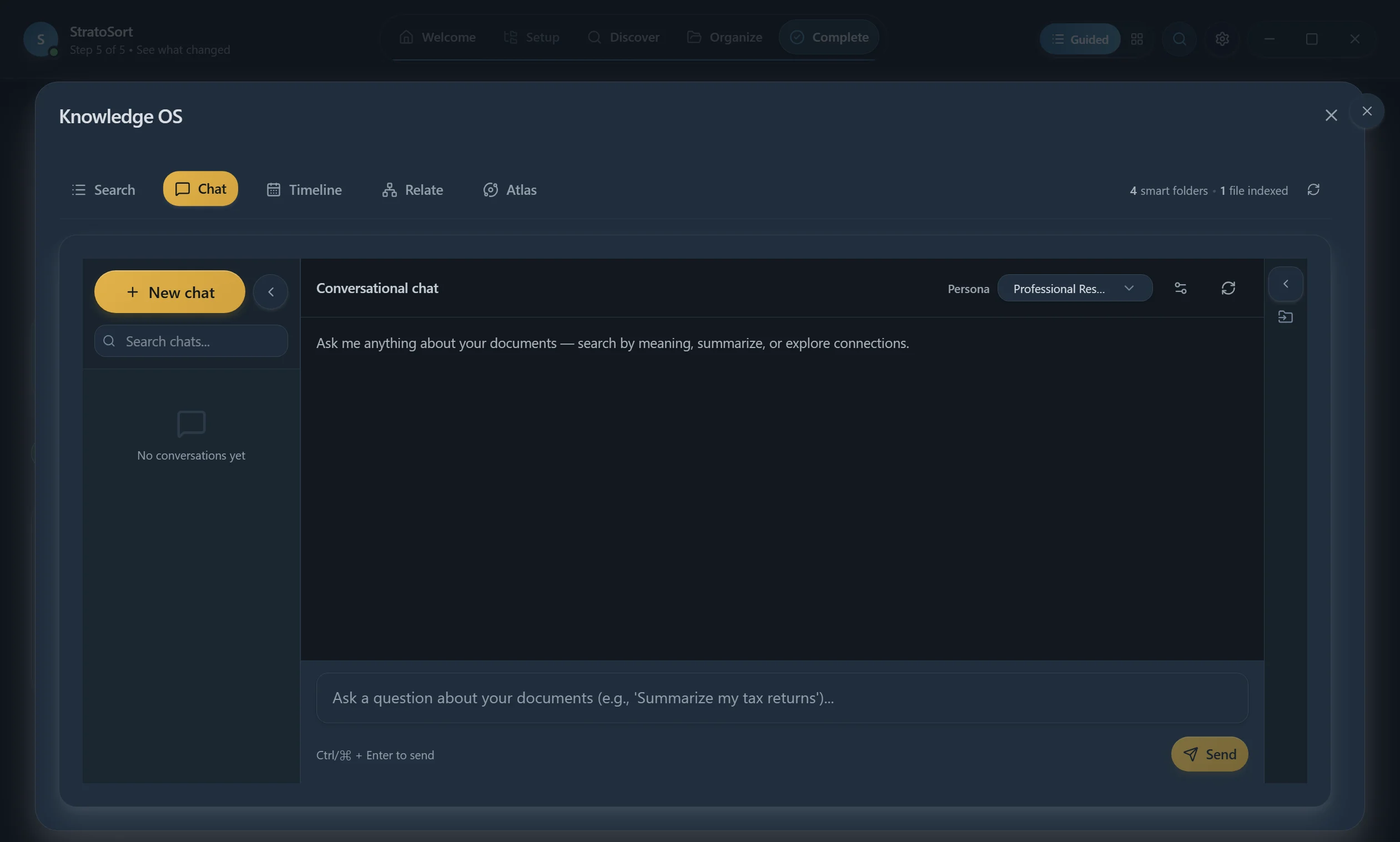
The Chat tab is a retrieval-backed chat interface for asking questions about your documents in natural language.
Features:
- New Chat button to start a conversation
- Search chats to find past conversations
- Chat input — "Ask a question about your documents (e.g., 'Summarize my tax returns')..."
- Ctrl+Enter to send messages
When you ask a question, the AI:
- Searches your indexed documents for relevant sources
- Shows "Searching documents..." then "Found N relevant sources..."
- Generates a contextual answer using the matched content
Relate Tab — Knowledge Graph Visualization
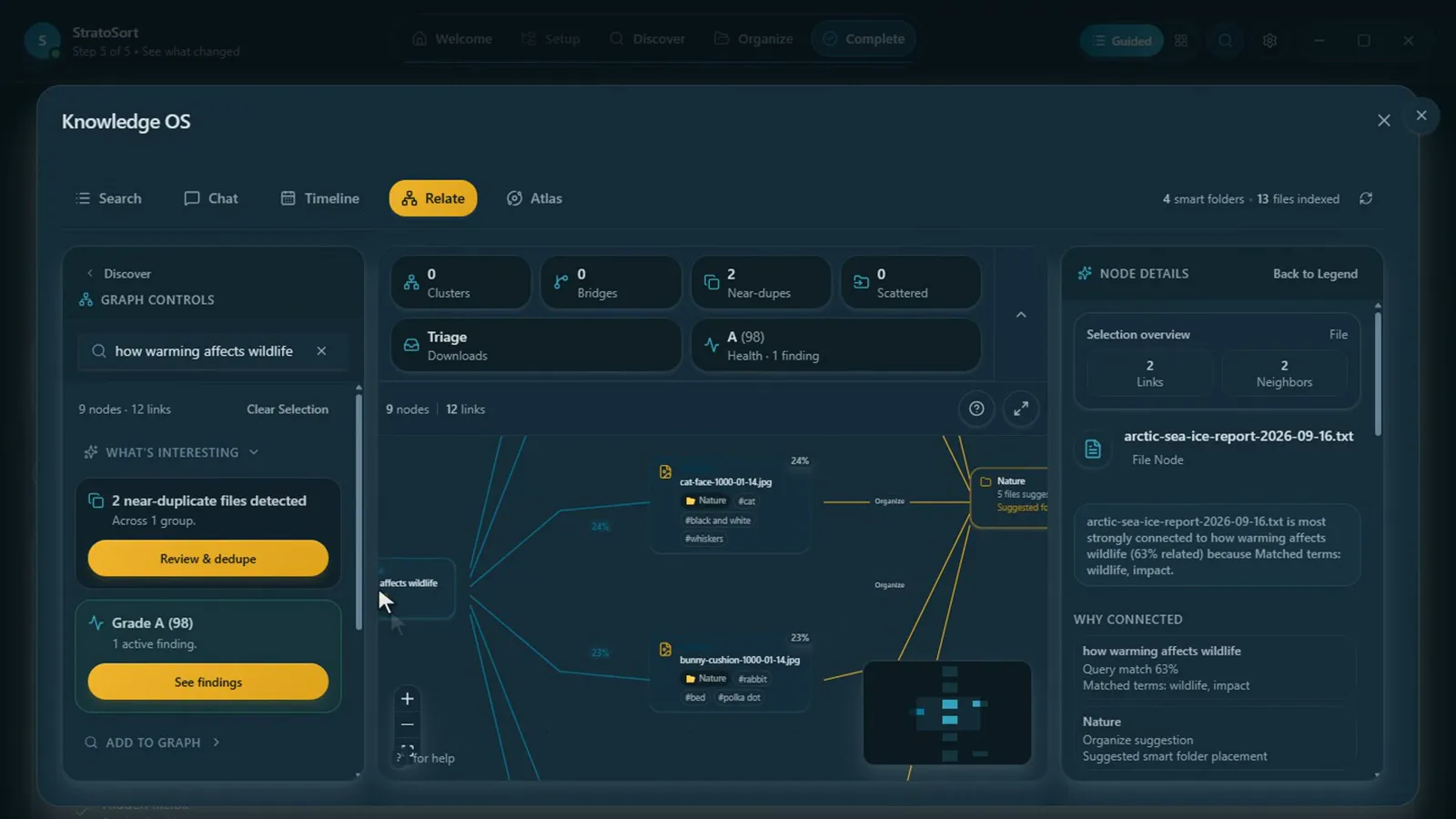
The Relate tab provides an interactive Knowledge Graph for exploring relationships between your documents. The interface has three panels:
Left Panel — Graph Controls:
- Current graph stats (Nodes, Links, Filters)
- Insights — AI-generated organizational analysis
- Add to Graph — Search and add files to the visualization
- Explore / Actions / Advanced sections
Center — Graph Canvas:
- Interactive node-link diagram with clusters
- Clusters On/Off toggle
- Zoom (+/−) and pan controls
- Double-click clusters to expand into individual files
Right Panel — Legend & Node Details:
- Node type legend: Cluster (orange), File (blue), Query (purple)
- Connection types: Shared Tags, Same Category, Content Match, Vector Similarity
- File category colors: Documents, Images, Audio, Spreadsheets, Code, Videos
- Cluster confidence indicators
Cluster Exploration
Clicking a cluster shows file count, why files were grouped, and per-file connection reasons. Double-clicking expands individual file nodes. Insights cover topic clusters, bridge documents, near-duplicates, and scattered files.
Clustering needs at least 3 indexed files.
Atlas
Atlas draws your whole library as a map: files that sit near each other are similar. The first projection can take a moment on a large library.
Building the Search Index
Knowledge Graph requires embeddings to function. Embeddings are generated automatically during analysis when "Embedding timing" is set to "During analysis" (the default). To rebuild manually, switch Settings to Advanced and use Rebuild all embeddings under AI Configuration → Embeddings maintenance.
Timeline sorts analyzed files by date. Atlas maps the library so nearby files are similar.
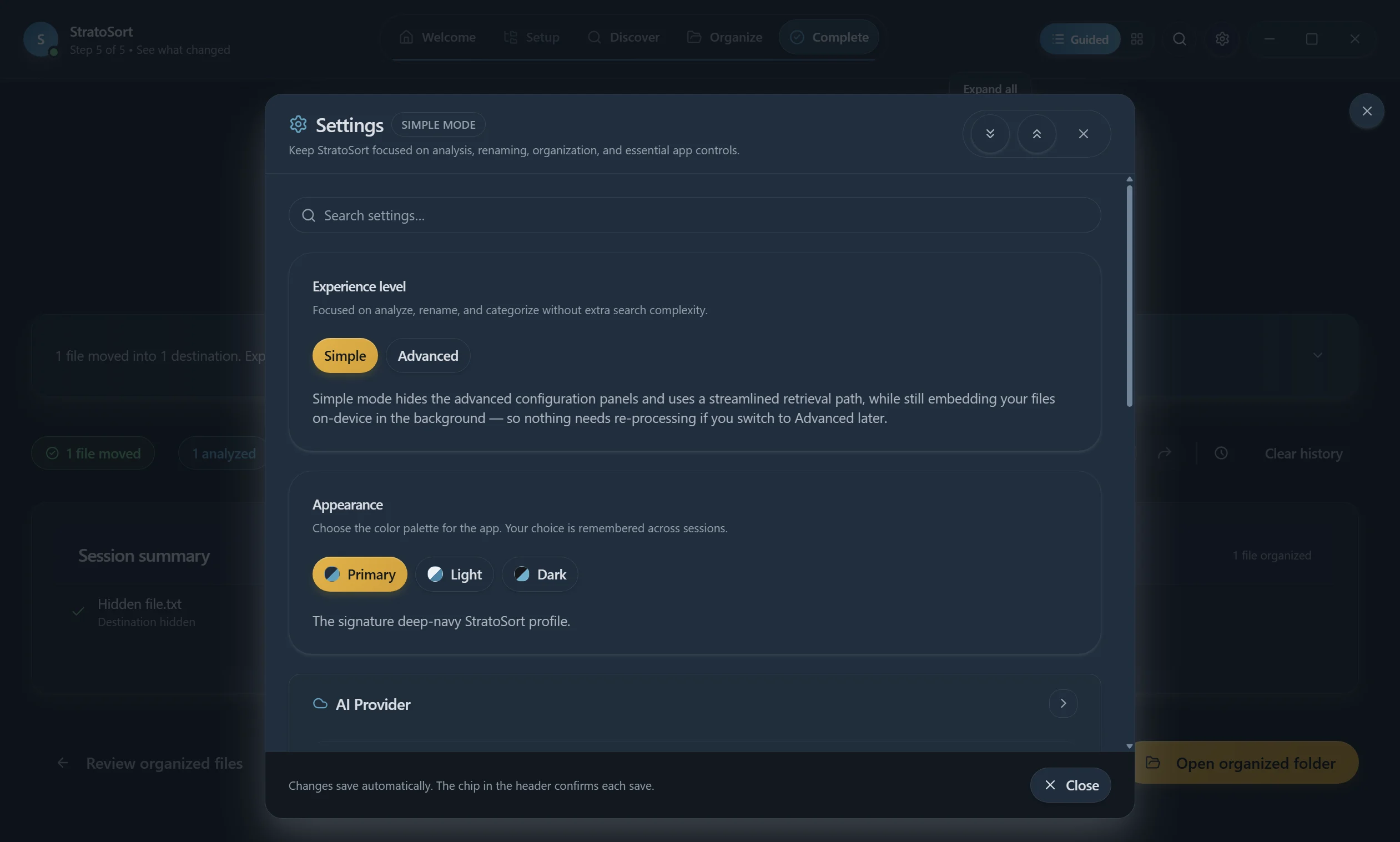
8. Settings — Full Reference
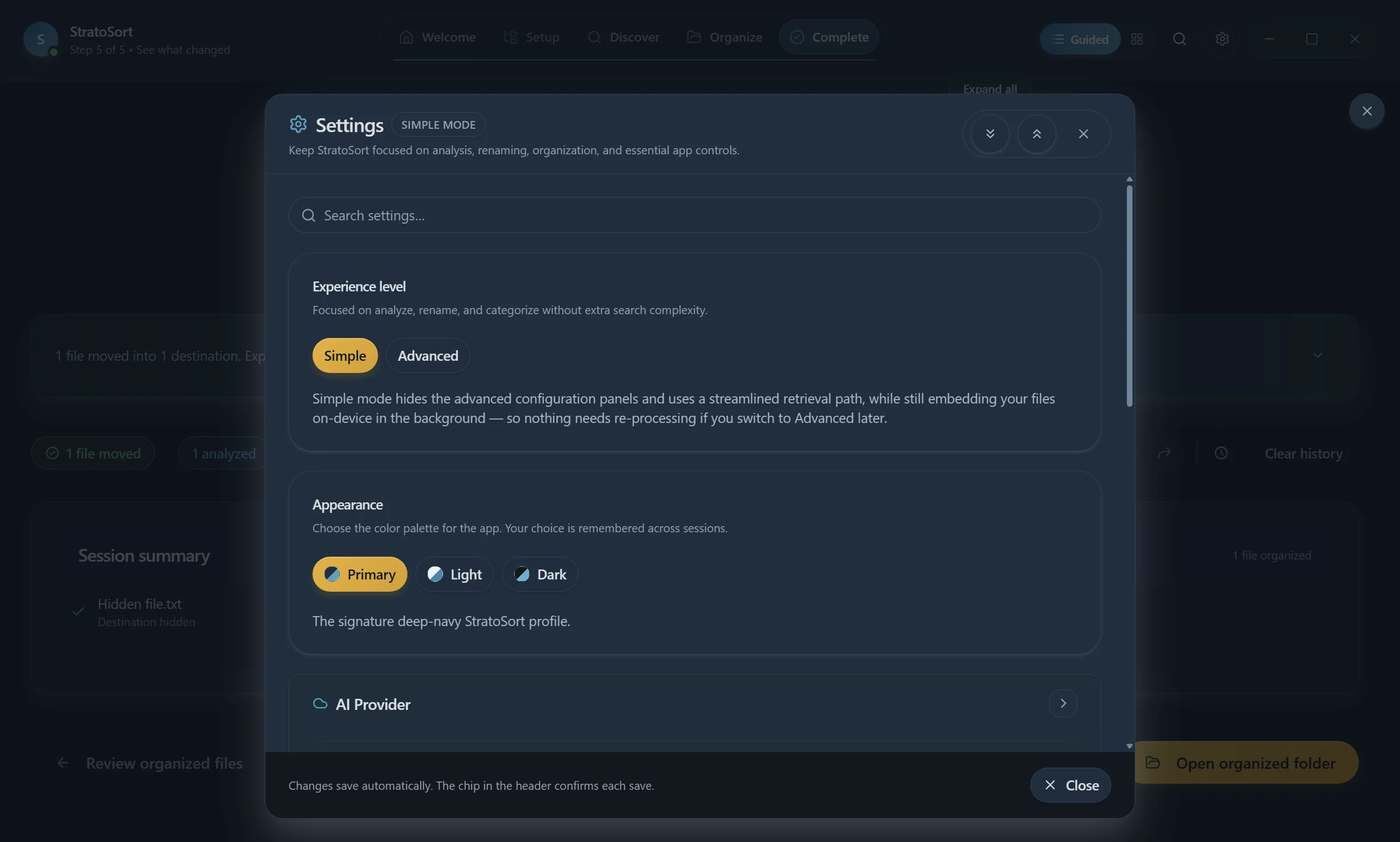
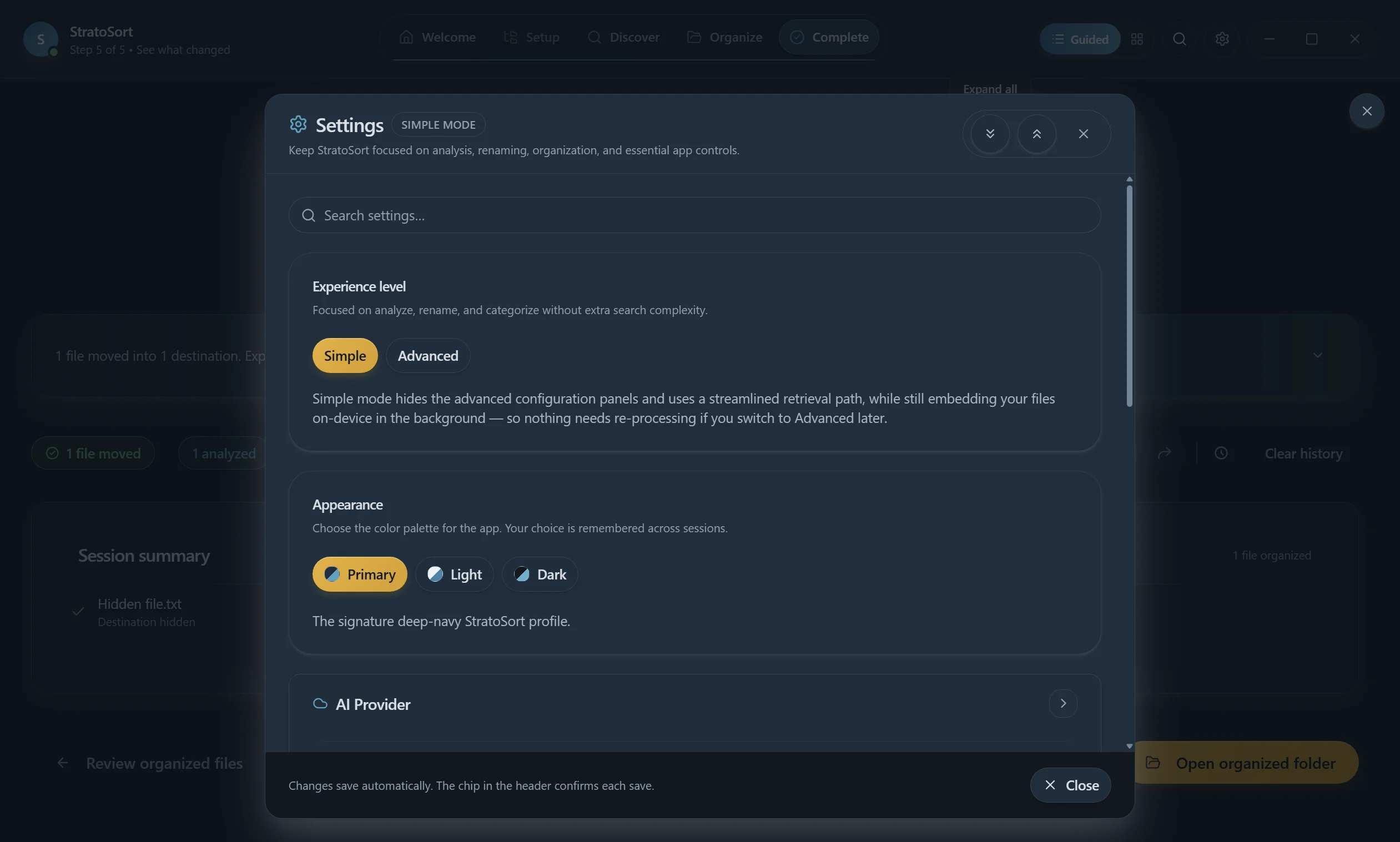
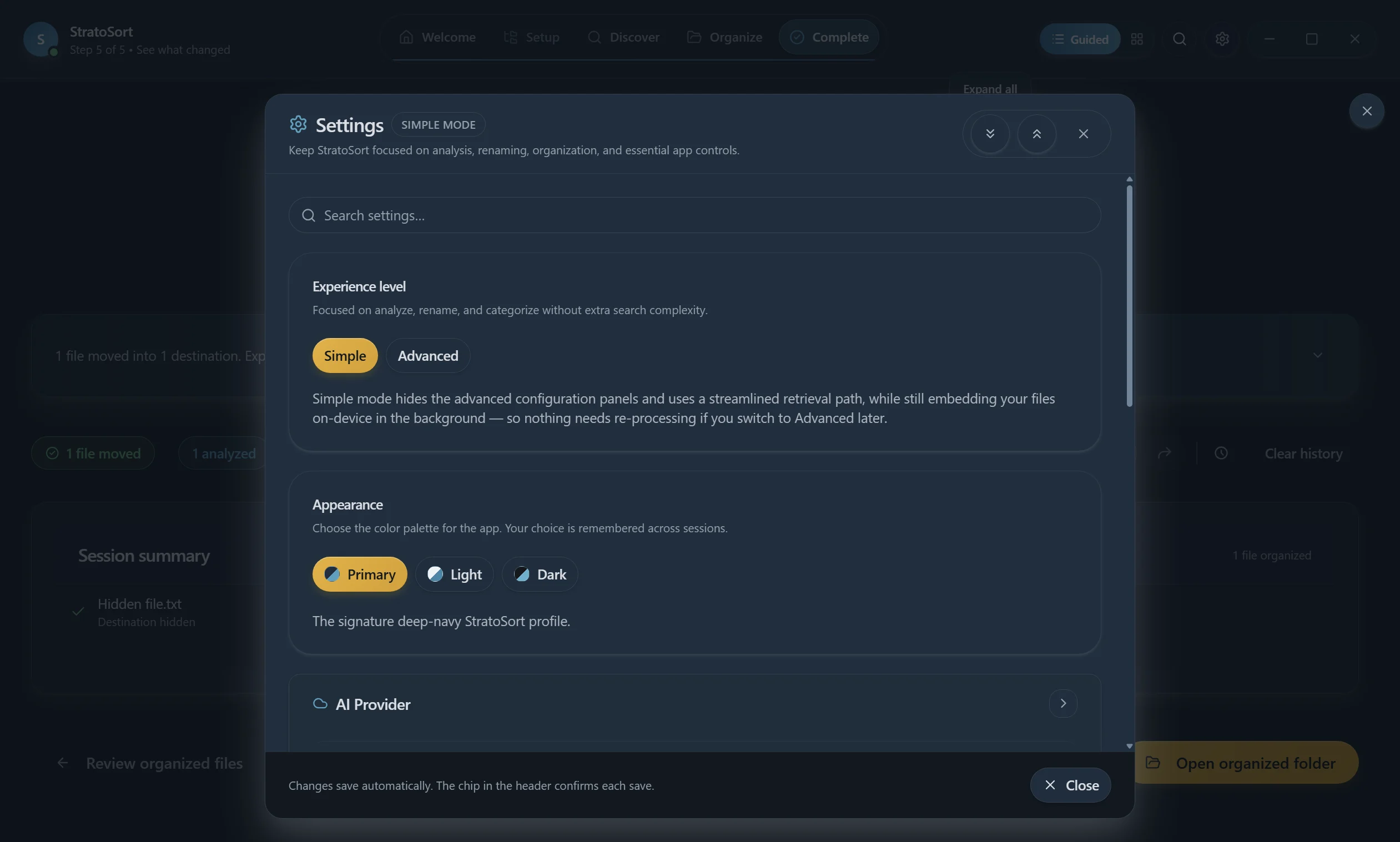
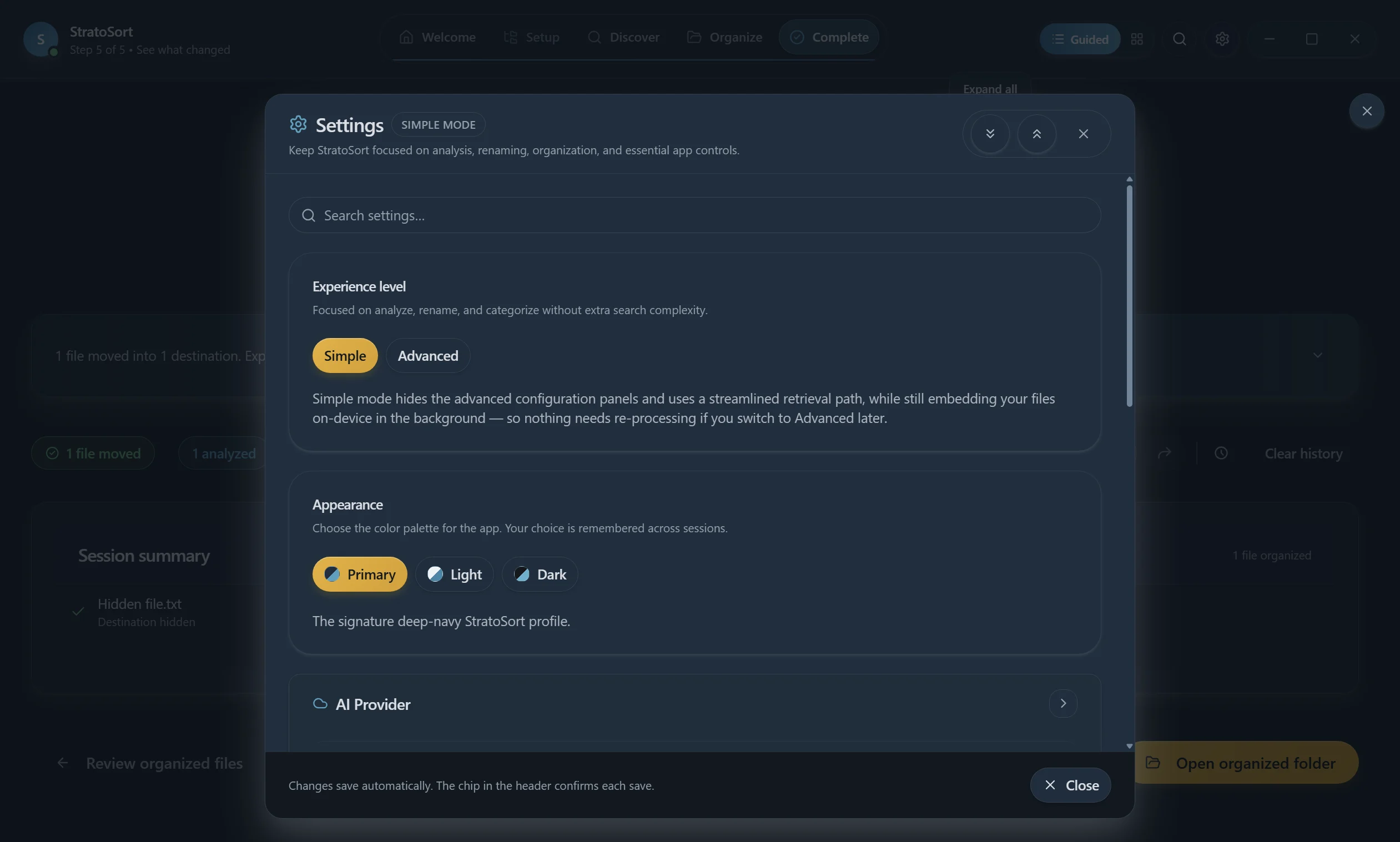
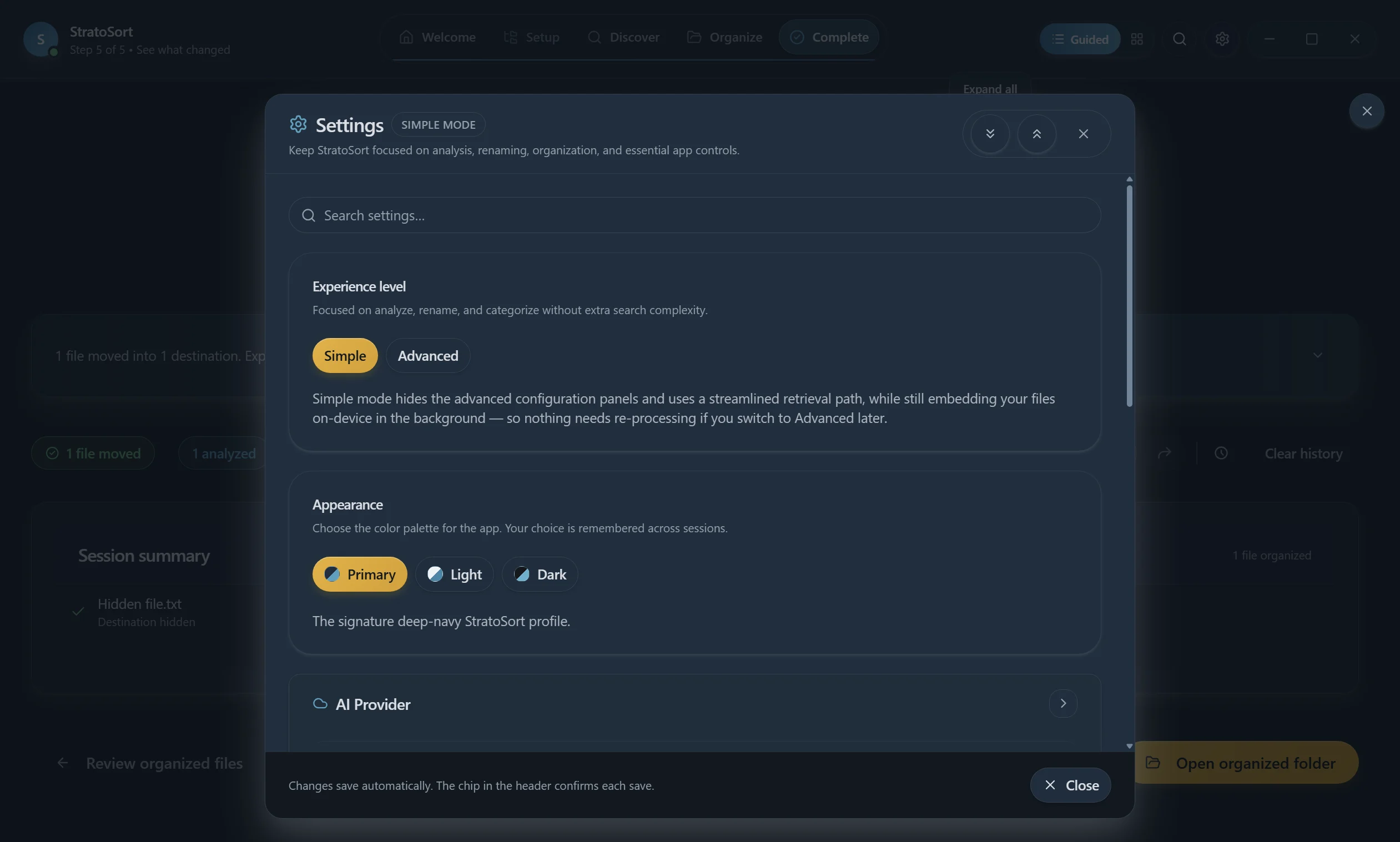
Click the gear icon (⚙) in the navigation bar to open Settings. Start with Simple unless you need Advanced panels (models, retrieval, diagnostics).
Current groups: Experience, Appearance, AI Provider, MCP Server, AI Configuration, Performance, Default locations, Application (includes License, About, Legal notices), Analysis history, and Diagnostics (Advanced). The still shows Simple mode; switch to Advanced for models, retrieval, and diagnostics.
8.1 AI Configuration
Local AI Engine
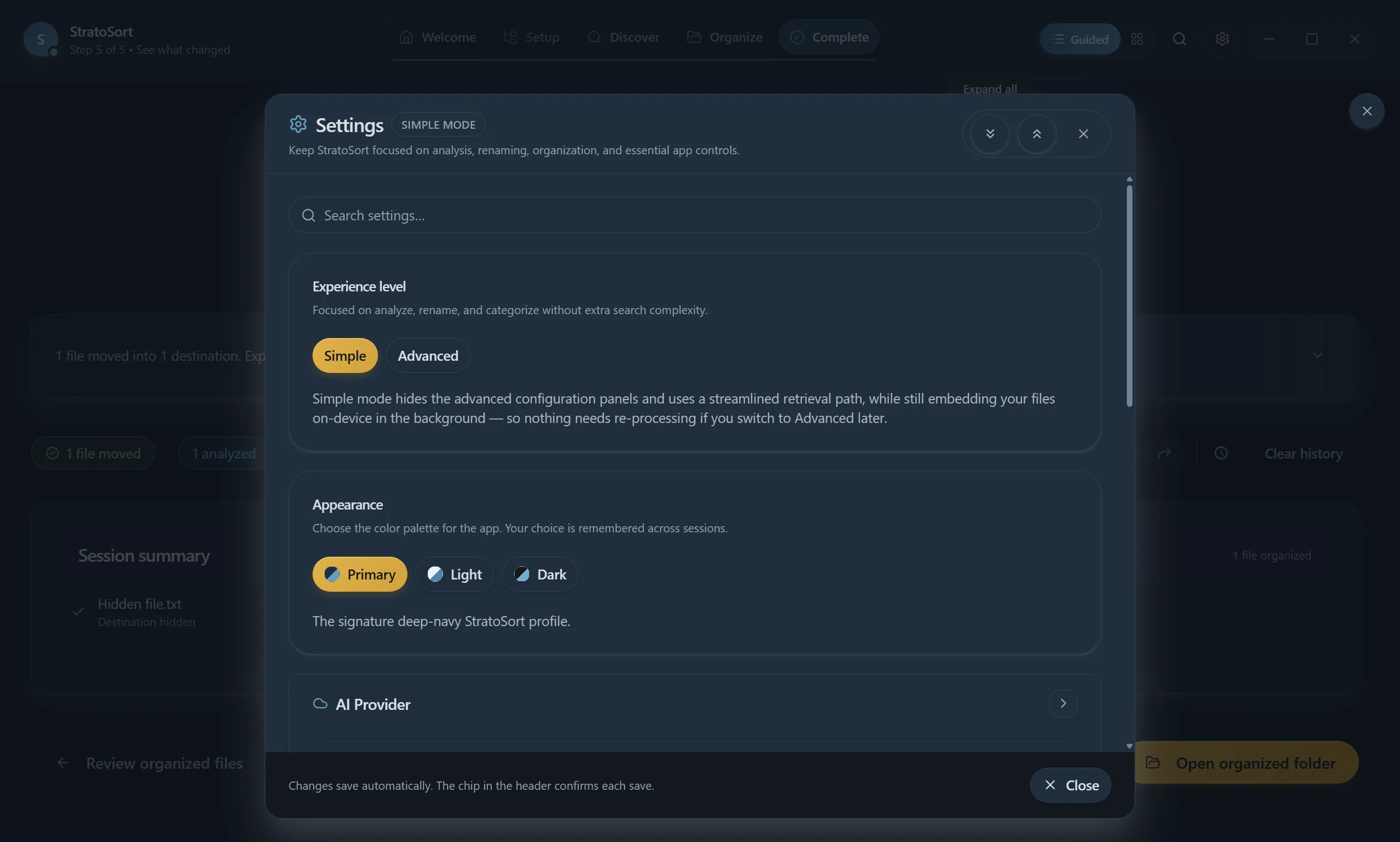
- Status badge — Shows "Ready (cpu)" or "Ready (gpu)" with model count
- GPU Acceleration — Toggle between CPU-only and GPU-accelerated inference
- Refresh Models / View All Models — Manage available GGUF model files
Default AI Models (Advanced)
- Text Model — The LLM used for document analysis (e.g., Qwen, Llama)
- Vision Model — The model used for image analysis (e.g., LLaVA)
- Embedding Model — The model used for vector search (e.g., Nomic Embed)
Model Management (Advanced)
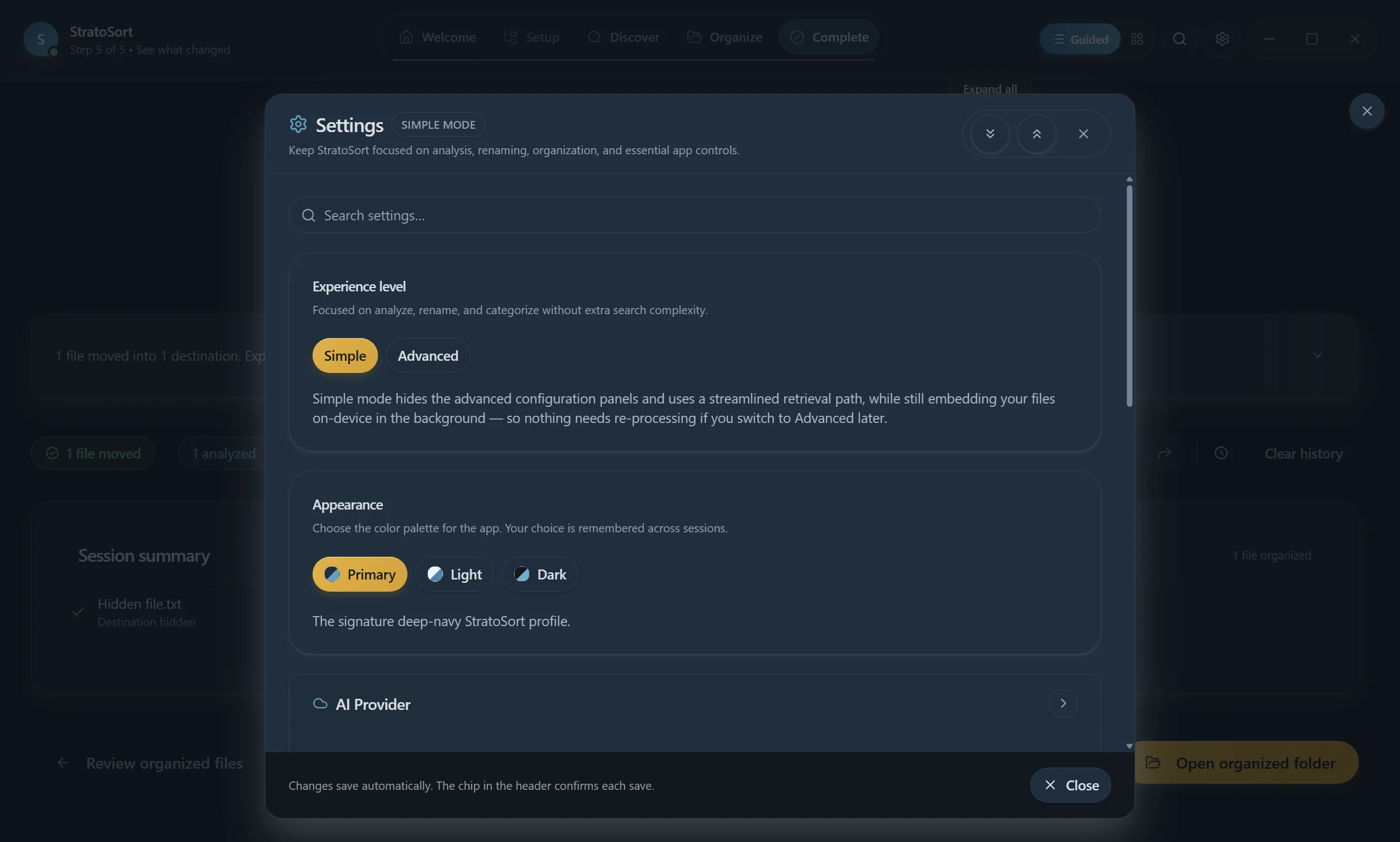
Click Download next to a model in the catalog, or add another GGUF model by entering its exact filename from the model registry. In Simple mode, the Local AI engine card offers Download recommended models instead.
Embedding Behavior
| Setting | Options | Default |
|---|---|---|
| Embedding Scope | All analyzed files, Organized files only | All analyzed files |
| Embedding Timing | During analysis, After organization | During analysis |
| Default Embedding Policy | Embed locally, Skip | Embed locally |
| Auto-generate Chunk Embeddings | On/Off toggle | On |
Rebuild all embeddings (Embeddings maintenance) — Use after changing embedding models. Preserves analysis data while regenerating the search index.
8.2 Performance
Auto-Organize
- Auto-organize Downloads — Automatically analyze and organize new files in your Downloads folder
- Smart Folder Routing — Choose routing strategy:
- Auto (starts LLM-only, shifts to hybrid as embeddings build)
- LLM-only
- Embedding-first
- Hybrid
Background Mode
- Background Mode — Keep StratoSort running in the system tray when the window closes
Processing Limits
- Concurrent Analysis — Maximum simultaneous file analyses (default: 1)
- Max file sizes — Separate limits for images (100 MB), documents (200 MB) and text files (50 MB; larger text files are analyzed from their first 50 MB)
Search Enrichment (Advanced)
- Enable relationship expansion — Use relationship edges to pull related files into search results
- Relationship expansion weight — Slider (0–100%) controlling how much related files influence ranking (default: 20%)
- Related files limit — Maximum related files per query (default: 120)
- Contextual chunk expansion — Use adjacent chunks for more context
- Rebuild — Rebuild the relationship index now instead of waiting for the next scheduled rebuild
8.3 Default Locations
- Default Smart Folder location — Base path where new Smart Folders are created (default: your Documents folder)
- Browse button — Select a different base path
File Naming Defaults
Controls how files are renamed by Download Watcher, Smart Folder Watcher, and Reanalyze All Files. Same options as the Naming Strategy modal in Discover.
8.4 Application
Application Preferences
- Launch on Startup — Auto-start StratoSort when you log in
- Background update checks — Check GitHub Releases for a new version at startup and every 4 hours (on by default in installed builds)
- Software updates — Check for updates now
Notifications
- Enable Notifications — Master toggle
- Display Mode:
- App and system tray (Recommended)
- App only (in-window toasts)
- System tray only
- Notification Events:
- Auto-analyzed files — Notify when smart folder/download watchers analyze files
- Low confidence files — Notify when confidence is below the auto-organize threshold
Settings Backup & Restore
- Create Backup — Save current settings to backup history
- Export to File — Export settings as a portable file
- Import from File — Restore settings from an export
- Available Backups — List of timestamped backups with restore and delete actions
8.5 Analysis History
- View Analysis History — Opens a viewer showing past analysis results and statistics
- Useful for reviewing what the AI detected and how files were categorized
8.6 Diagnostics (Advanced)
Troubleshooting Logs
- Open folder — Opens the log directory in your file manager
- Export logs — Creates a log bundle for support tickets
Backend API Test
- Test all APIs — Runs connectivity checks against all core services (LLM, vector DB, file system, etc.)
9. Videos
The current how-to-use recording covers first launch through Organize, Complete, Knowledge OS, and Settings.
Regenerate with npm run tour:record. See
HOW_TO_USE_TOUR.md.
Linux-Specific Notes
Running the AppImage
# Make executable
chmod +x StratoSortStack-X.X.X-linux-x86_64.AppImage

# Launch
./StratoSortStack-X.X.X-linux-x86_64.AppImage
Models Directory
Models are stored in ~/.config/StratoSort Stack/models/. The app creates this directory
automatically and downloads models on first launch.
Settings Location
Application settings are stored in ~/.config/StratoSort Stack/settings.json.
System Tray
On Linux, Background Mode places StratoSort in the system tray. Requires a tray-compatible desktop environment (GNOME with AppIndicator, KDE, XFCE).