
Using StratoSort
User Guide
This guide explains how to use StratoSort Stack day-to-day, including Smart Folders, Knowledge OS (search, chat, Relate, Atlas, timeline), Downloads triage, and key settings.
For installation help, use Install Guide. For testing and bug reporting, use the Tester Guide.
1) What StratoSort Does
StratoSort uses local AI to:
- Analyze your files by content (not just filename)
- Suggest where files belong
- Rename files using your naming rules
- Help you search by meaning, chat with your files, and see them on a graph or map
- Watch Downloads or Smart Folders and suggest where new files belong
Processing stays on your machine after the one-time model download unless you turn on optional cloud AI in Settings (your own API keys). Embeddings always stay local.
2) Typical Workflow
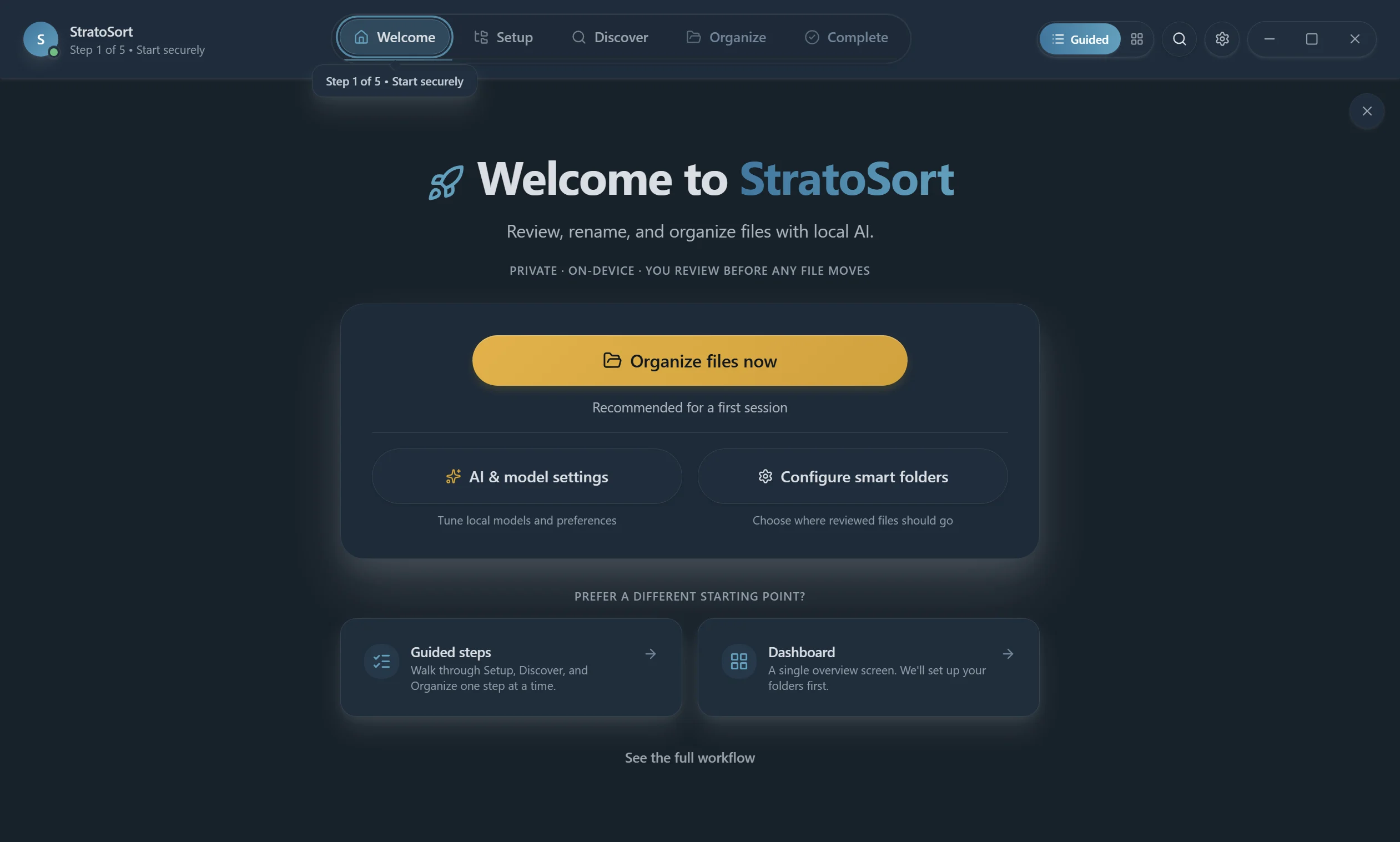
StratoSort is organized into five phases. You move through them in order:
- Welcome — Start screen. Choose your flow.
- Setup — Create Smart Folders (the destination folders the AI routes files into). Give each folder a plain-language description so the AI knows what belongs there.
- Discover — Drag and drop files, or use the Select/Scan Folder buttons to browse. The AI analyzes content, extracts meaning, and generates organization suggestions.
- Organize — Review each suggestion. Accept, reject, or edit the destination and filename. Use Undo/Redo if you change your mind.
- Complete — See a summary of everything that was organized. Undo is still available here.
Prefer one screen over steps? Choose Dashboard on the Welcome screen, or use the Guided / Dashboard toggle in the top bar, for a single overview screen. Guided (the phases above) is the default.
3) Smart Folders (Most Important First Setup)
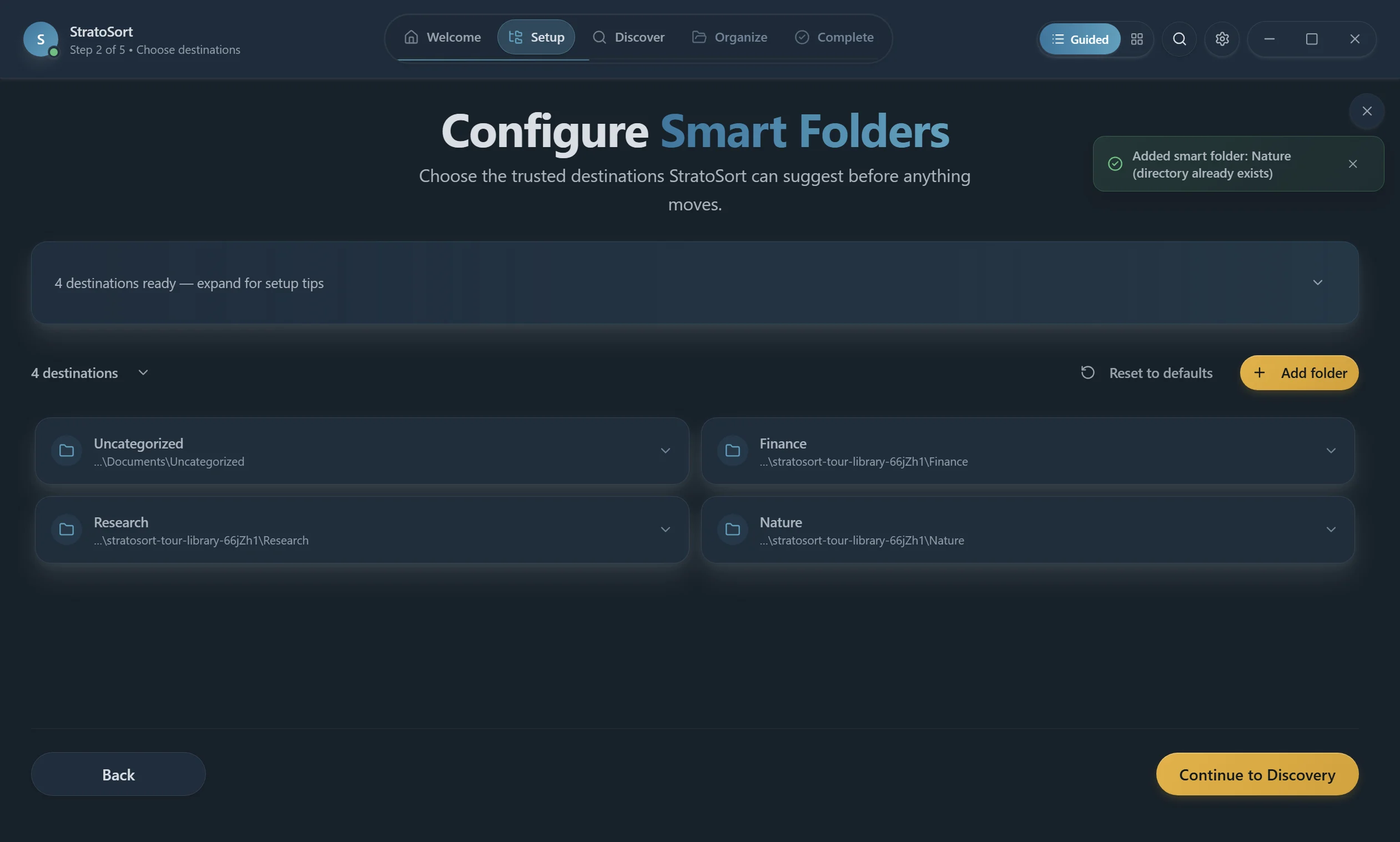
Smart Folders are destination folders that the AI routes files into. Each Smart Folder has a description that tells the AI what kind of files belong there. The AI compares your file's content against these descriptions to decide where it fits best.
Best practices
- Create folders around real outcomes (for example:
Invoices,Receipts,Screenshots,Contracts). - Write descriptions in plain language — pretend you're telling a coworker what goes in each folder.
- Be specific. "Monthly bills and vendor invoices" works better than "financial stuff."
- The app creates a single "Uncategorized" fallback folder by default on the first launch.
- You must proactively create your own specific smart folders to instruct the AI where to sort files.
- Start with 3-5 clear folders before adding more. Overlapping descriptions confuse the AI.
Good folder description examples
| Folder | Description |
|---|---|
| Invoices | "Bills from vendors and monthly service invoices." |
| Tax Documents | "W-2, 1099, tax forms, receipts needed for filing." |
| Project Specs | "Requirements, architecture docs, and project briefs." |
| Screenshots | "Screen captures, app screenshots, and UI mockups." |
4) Naming Conventions
Open Settings -> Default Locations -> File naming defaults.
You can control:
- Convention
subject-datedate-subjectproject-subject-datecategory-subjectkeep-original
- Date Format
YYYY-MM-DDMM-DD-YYYYDD-MM-YYYYYYYYMMDD
- Case
kebab-case,snake_case,camelCase,PascalCase,lowercase,UPPERCASE
- Separator
- Use safe separators like
-or_
- Use safe separators like
Tip: If you need maximum compatibility across apps and systems, prefer kebab-case plus
YYYY-MM-DD.
5) Knowledge OS (search, chat, graph, map)
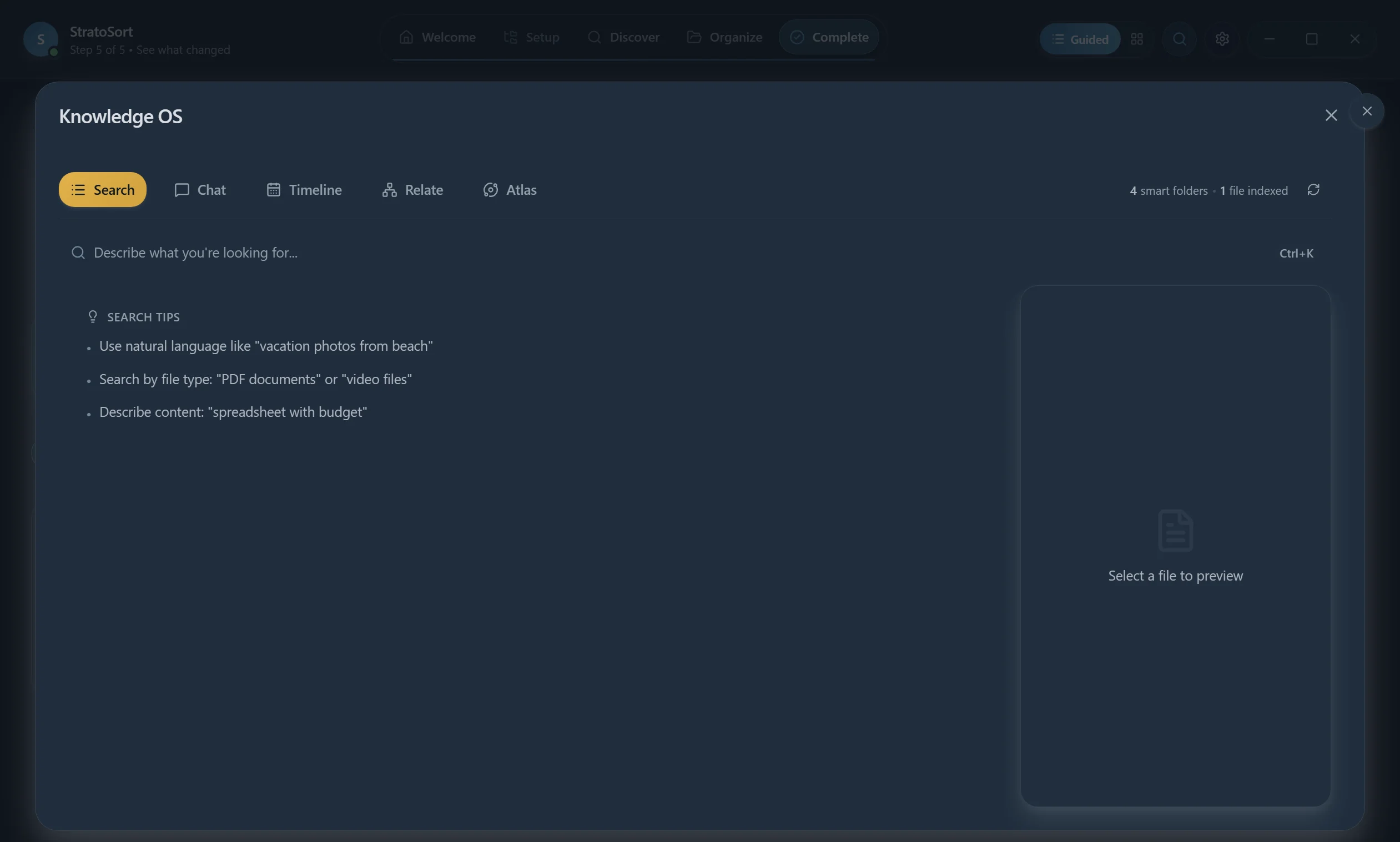
Open Knowledge OS with Ctrl+K (Windows/Linux) or Cmd+K (macOS), or the Knowledge OS button in the nav.
Tabs:
- Search — Natural language and keyword search ("invoices from last quarter").
- Chat — Ask questions about your analyzed files; answers cite the source documents.
- Timeline — Browse analyzed files by date.
- Relate — Node-link graph of clusters and similarity edges.
- Atlas — Map of the library: nearby dots are similar. Lasso a region to move, tag, or make a Smart Folder.
Relate vs Atlas
- Relate is for "how do these files connect?" — follow edges, expand a cluster, inspect bridges.
- Atlas is for a bird's-eye view — outliers, likely mis-files, bulk select.
Both use the same analysis. If search is empty, switch Settings to Advanced and use Rebuild all embeddings under Settings → AI Configuration.
Downloads triage
From Knowledge OS you can open Downloads triage: keep / trash / ambiguous buckets for a folder (usually Downloads), with a deeper scan for the ambiguous pile. Use it when the folder is messy and you want a review pass before auto-organize.
6) Settings Walkthrough
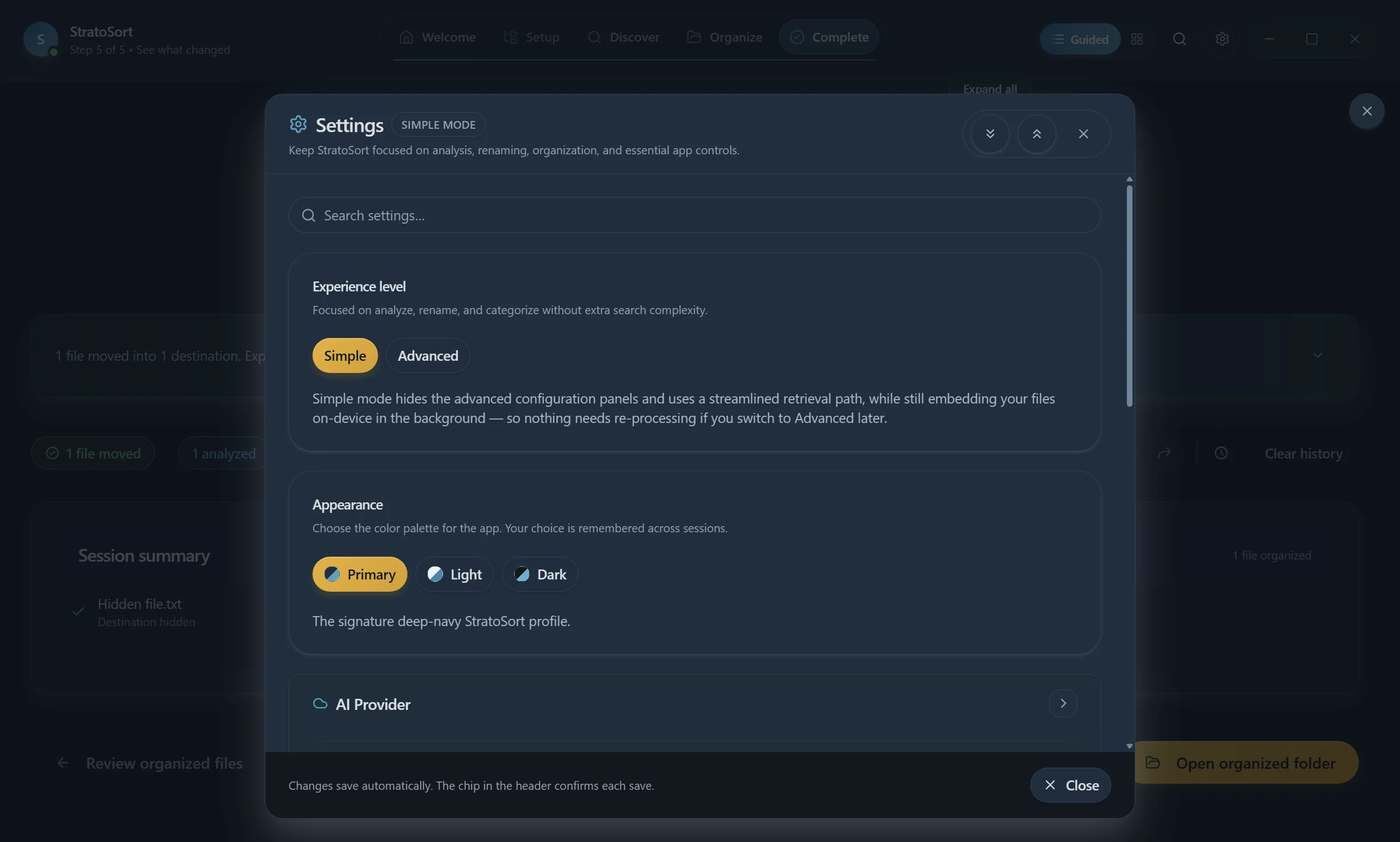
Open Settings. Use Simple unless you need model, retrieval, or diagnostic controls — Advanced reveals those panels.
Experience and appearance
- Simple / Advanced — Simple hides advanced configuration and uses a streamlined retrieval path. Files still embed on-device in the background.
- Appearance — Theme and color.
AI Configuration
- Local AI Engine: Model and GPU status. In Simple mode it also has Download recommended models.
- Default AI models: Text, vision, and embedding models (Advanced).
- Model Management: Download or add GGUF models (Advanced).
- Embedding behavior / rebuild: Rebuild the index after changing the embedding model (Advanced).
- Chat Persona: How the in-app assistant responds (Advanced).
AI Provider (optional cloud)
- Off by default. With a cloud provider selected, document analysis, chat and organization suggestions use it; each of the three can be sent to a different provider, or kept local.
- Anthropic or any OpenAI-compatible endpoint (OpenAI, Ollama, LM Studio, vLLM, …).
- Per-operation and per-Smart-Folder routing; a monthly spend cap per provider; self-hosted URLs count as $0.
- API keys stay in the OS keystore. Embeddings always stay local.
See AI_PROVIDERS.md.
MCP Server (optional)
- Off by default. Lets Claude Desktop, Cursor, Zed, or another MCP client search and chat with your local corpus. Loopback-only, bearer token, query text is not logged.
See MCP_SERVER.md.
Performance
- Auto-organize: Watch Downloads (and related routing).
- Background Mode: Keep running in the tray.
- Exclusion rules: Skip paths or patterns from watchers and triage.
- Processing limits and Search enrichment (relationship expansion and the relationship index Rebuild button) (Advanced).
Default locations
- Where new Smart Folders are created.
- File naming defaults (convention, date format, case, separator).
Application
- Launch on startup, notifications, and software updates. Installed builds check GitHub Releases for a new version at startup and every 4 hours; turn this off with Background update checks, or use Check for updates to check now. See Network Transparency.
- License: commercial key status. Every feature works without a key.
- About and Third-party notices.
- Settings backup/restore (Advanced).
- Troubleshooting logs live under Diagnostics (Advanced): snapshot, open/export logs, API tests.
Analysis history
- Past analysis results and statistics.
7) AI Model Profiles
On first launch, the setup wizard offers two profiles:
| Profile | Text Model | Vision Model | Embedding Model | Best For |
|---|---|---|---|---|
| Base (Small & Fast) | Llama 3.2 3B | LLaVA 1.6 Mistral 7B | all-MiniLM-L6-v2 | All computers, CPU-only, low memory |
| Better Quality | Qwen2.5 7B | LLaVA 1.6 Mistral 7B | nomic-embed-text v1.5 | Modern hardware, 16GB+ RAM, GPU |
You can switch models later in Settings -> AI Configuration -> Default AI Models (switch Settings to Advanced first; Simple mode hides this panel). Base downloads about 7 GB and Better Quality about 10 GB.
Changing the embedding model requires an index rebuild. The app prompts you when this is needed, both in Settings and when you re-run the setup wizard with files already indexed.
8) Recommended Starter Configuration
If you want a safe default profile:
- Start with the Base (Small & Fast) model profile
- Enable Auto-organize
- Keep confidence around 75-85%
- Use naming convention
subject-date - Use date format
YYYY-MM-DD - Keep separators simple (
-)
Then run a small batch first and review outcomes before scaling up.
9) Daily Usage Pattern
- Collect files in your intake location (for example your Downloads folder).
- Open StratoSort and go to the Discover phase. Drag files in or select a folder.
- Review the AI's suggested destinations and names.
- Move to Organize and approve, edit, or reject each suggestion.
- After organizing, open Knowledge OS (Ctrl+K / Cmd+K) to search, chat, or check Atlas/Relate.
- Use Undo/Redo in Organize or Complete if something doesn't look right.
10) Troubleshooting Quick Fixes
Search is weak or empty
- Check Settings -> AI Configuration for model status.
- Confirm embeddings exist and rebuild if needed.
- Retry with a more specific query.
Auto-organize feels too risky
- Increase confidence threshold.
- Keep Smart Folders tightly defined.
- Start with manual review before fully trusting automation.
File names are not what you expect
- Review naming defaults in Settings -> Default Locations.
- Confirm convention/date/case/separator values.
Need to see logs
- Open Settings -> Diagnostics (Advanced) and use Open Folder or Export Logs.
- Use Open Folder to browse logs or Export Logs to create a shareable file.
11) Reporting Problems
Use the tester guide for full reporting instructions: Tester Guide
Direct bug form: Open a bug report
12) License
Personal and other noncommercial use is free under PolyForm Noncommercial 1.0.0. There is no trial, nothing expires, and no feature needs a key.
Commercial use (a company’s business, a paid product or service, or any use that is not a permitted noncommercial purpose) needs a paid license. See Commercial licensing or email contact@kennedyappliedsciences.com.